Creating references by importing presentation
Written By Hublyd
Note: this feature is only available on premium plans (Warm up and Podium)
Supported file formats
PPTX
PDF
⚠️ We highly recommend using a presentation that matches the columns already defined in your Hublyd library.
During presentation import, the mapping between slide layouts and columns is based strictly on the existing schema. The AI is used only to preview and validate the correspondence, not to create new columns, ensuring an exact and predictable result.
How to import references
Go to the References section
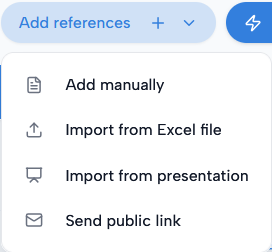
Click Add references
Select Import from presentation
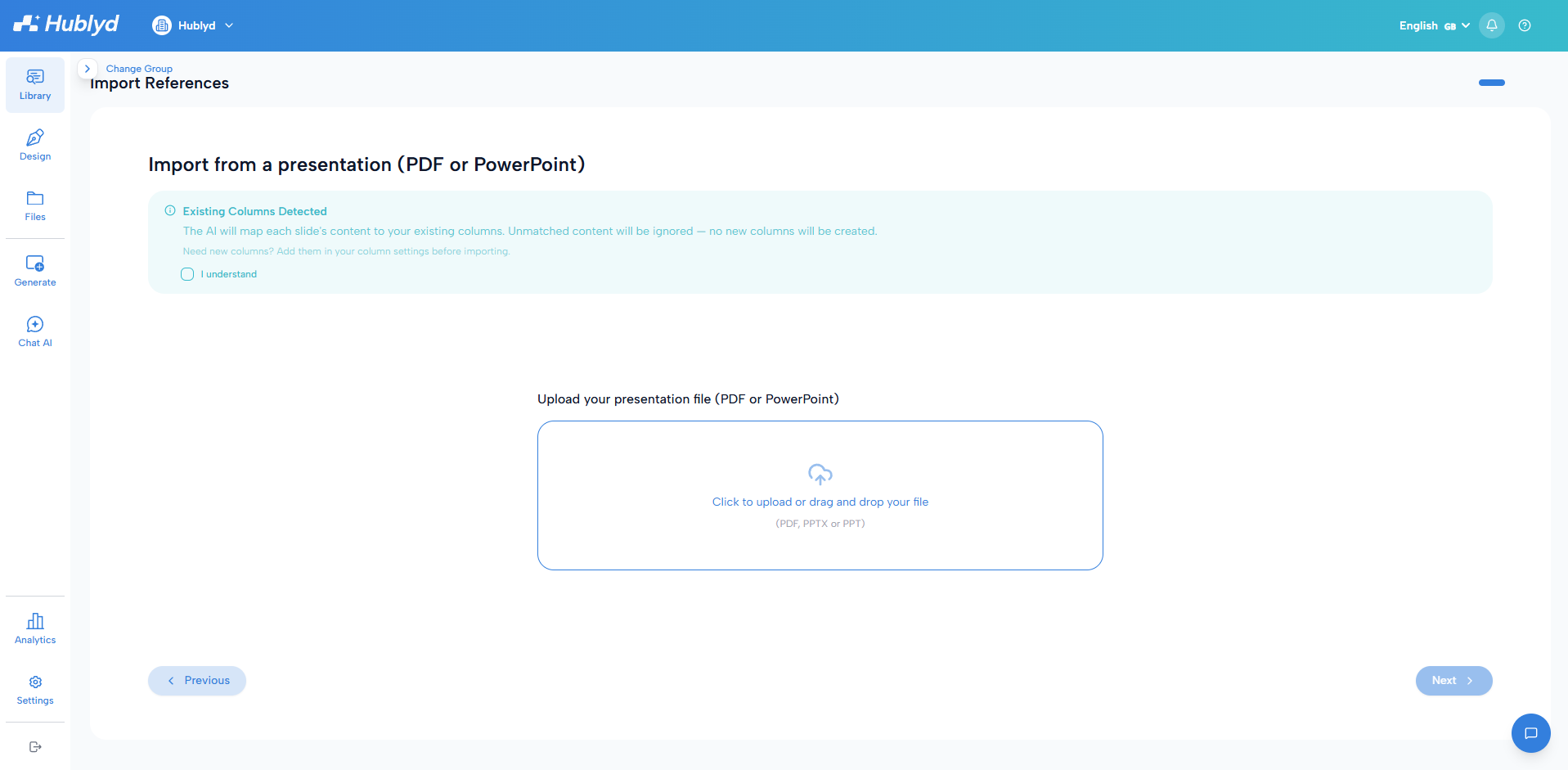
Upload your file
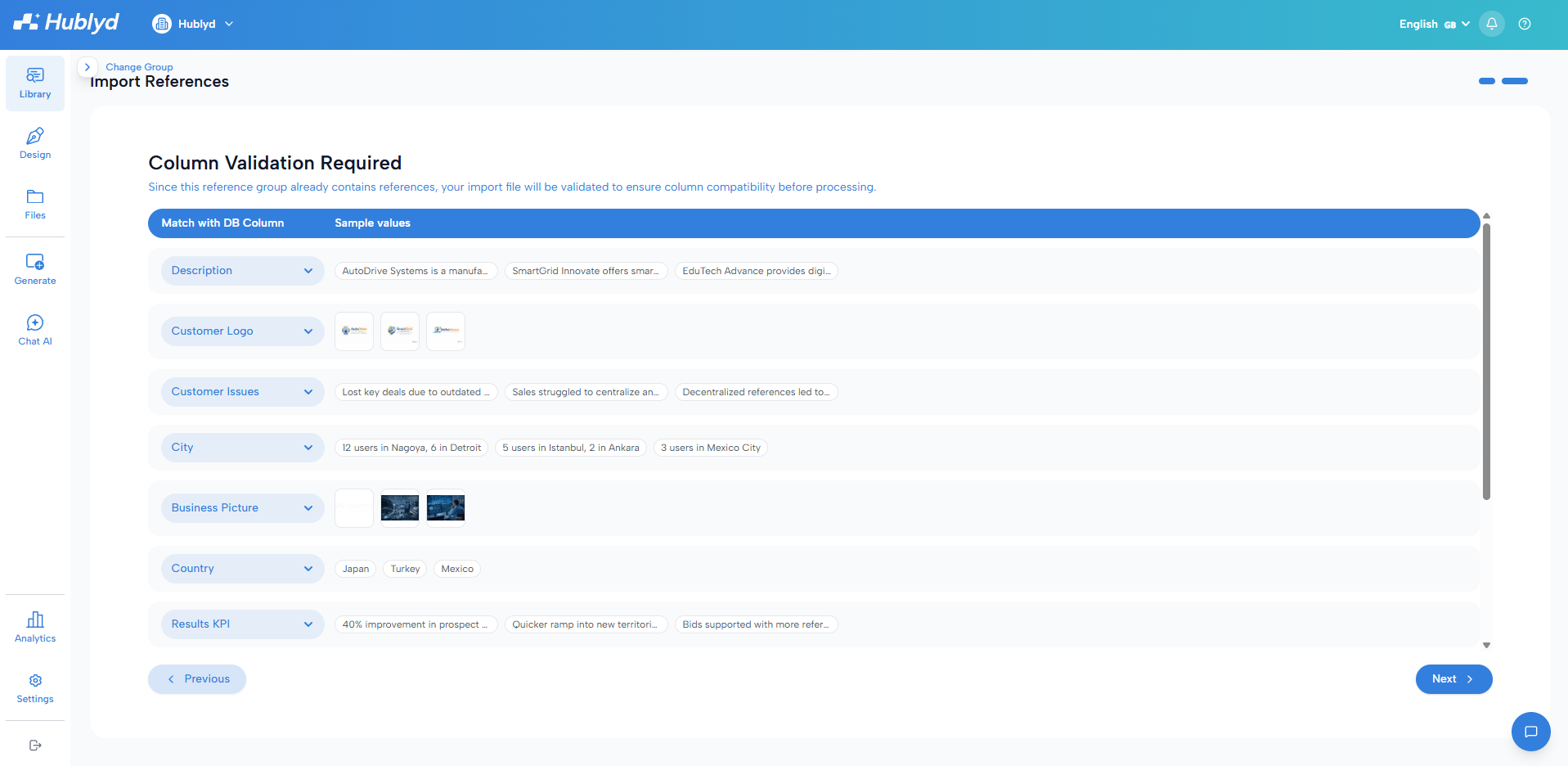
Review the matched columns
Hublyd automatically matches column names based on the extracted data. You can adjust the matched columns if Hublyd’s AI did not match them correctly.
Step 3: Review the extracted data
Review the extraction slide by slide to ensure the data is correctly captured (no mistakes) and assigned to the expected columns.
You can edit text directly, drag and drop images between columns, and delete an entire slide if you don’t want its data to be included in the import.
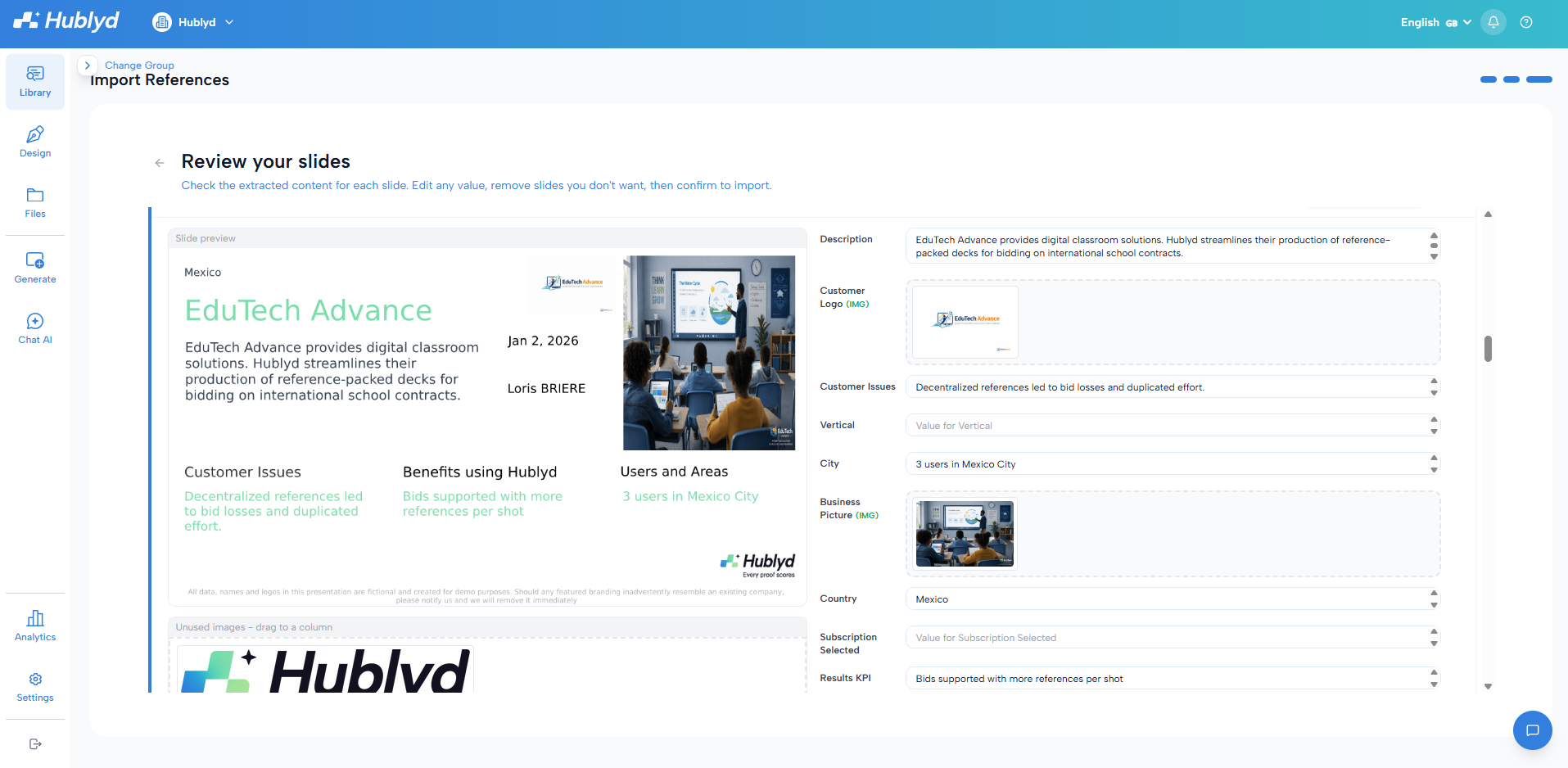
This step helps validate and fine-tune the extraction before completing the import.
Step 4: Confirm and import
Once everything looks good, confirm the import. Your references will be added to Hublyd and ready to use.
A pop-up window will appear to show you the progress of the import. The duration of the import varies depending on the number of references. The data will be translated and processed according to the languages you have selected.
When to use imports
Imports are ideal when:
Migrating existing customer references
Adding large datasets with images
Working from structured spreadsheets
Was this helpful?
Still need help? Share an idea