Displaying references
Hublyd lets you explore your references using two complementary views: Table view for structured browsing, filtering, and selection Map view for geographic visualization based on location data You can switch between views at any time depending on how you want to explore your data.
Written By Hublyd
Table view
The table view is the default way to manage and browse references. Each reference is displayed as a row, with columns representing your library schema.
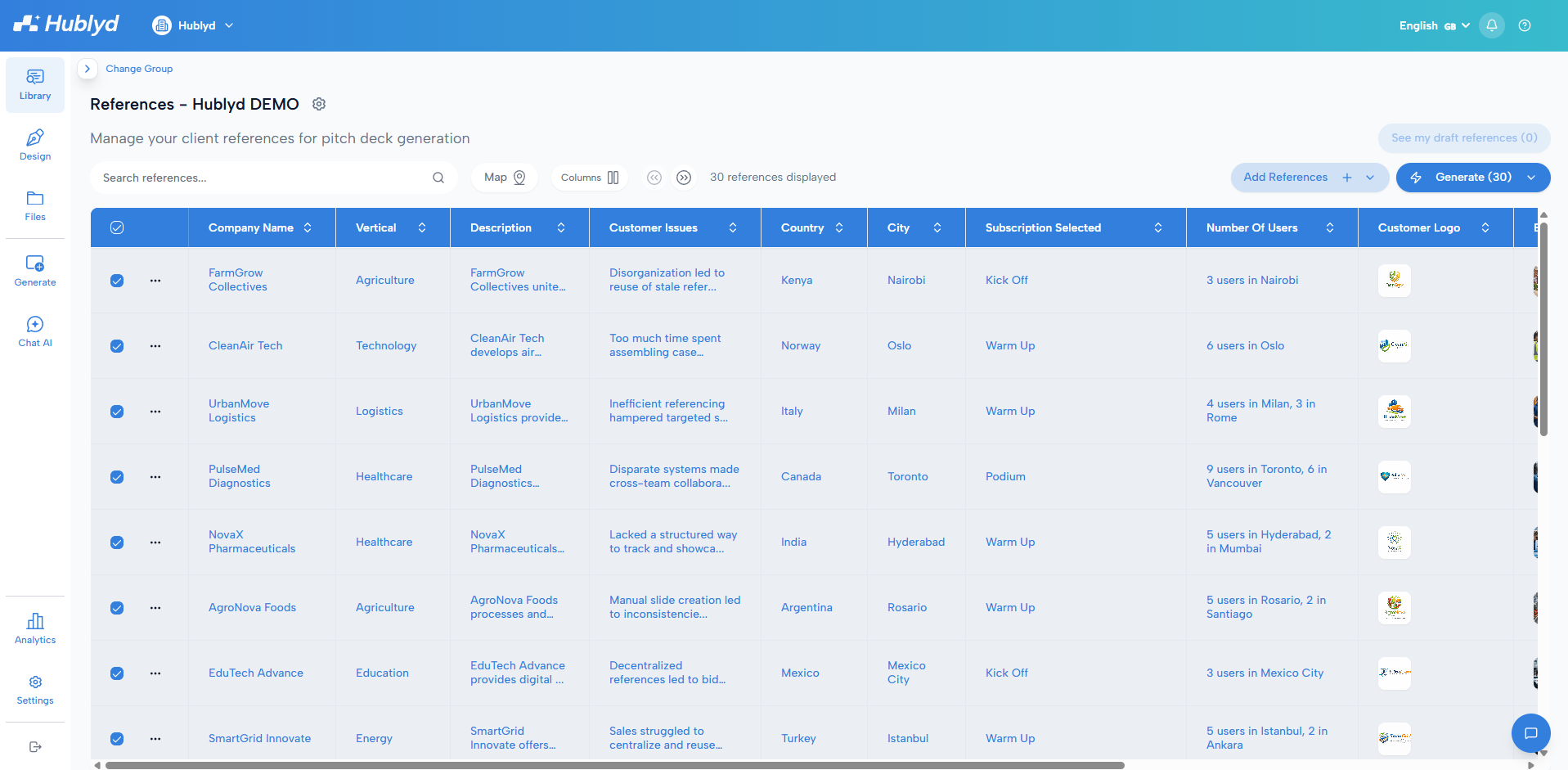
Searching references
At the top of the table, you can use the search bar to search across reference fields.
This search:
Looks through the content of your references
Matches values in text fields, dropdowns, and other searchable columns
For example:
Searching for
Europewill return all references that mention “Europe” in any field
(country, project description, client name, etc.)
This search is not limited to geographic location.
Filtering and sorting
In table view, you can:
Sort references by column
Filter references based on specific fields
Select or unselect references for generation
This makes the table view ideal for precise selection and bulk actions.
Map view
Note: this feature is only available on premium plans (Podium)
The map view displays references that include location data (for example, country, region, or city).
Each reference with valid location data appears as a point or highlighted area on the map.
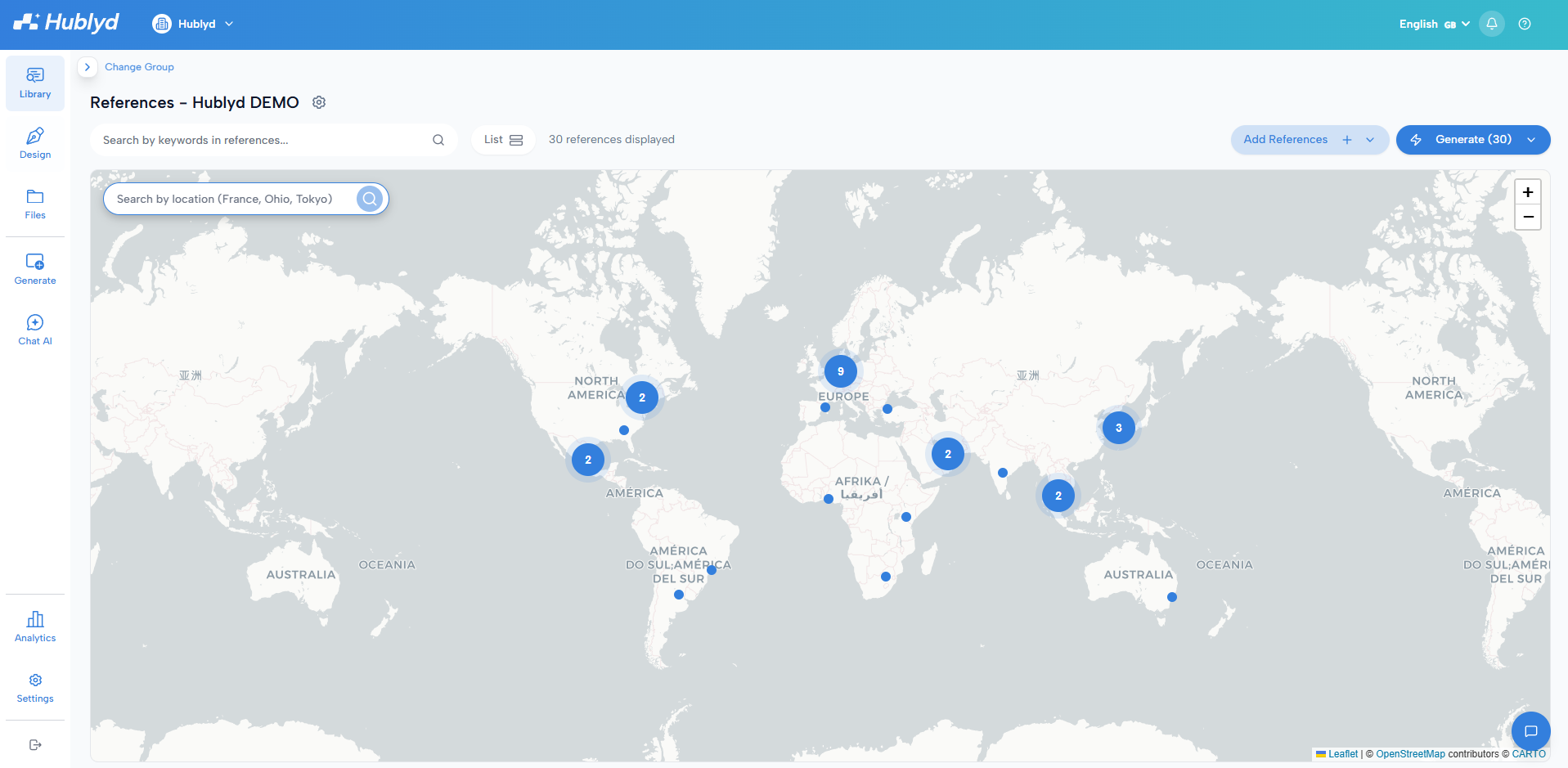
Viewing reference details on the map
You can click on any point displayed on the map to open the reference details panel.
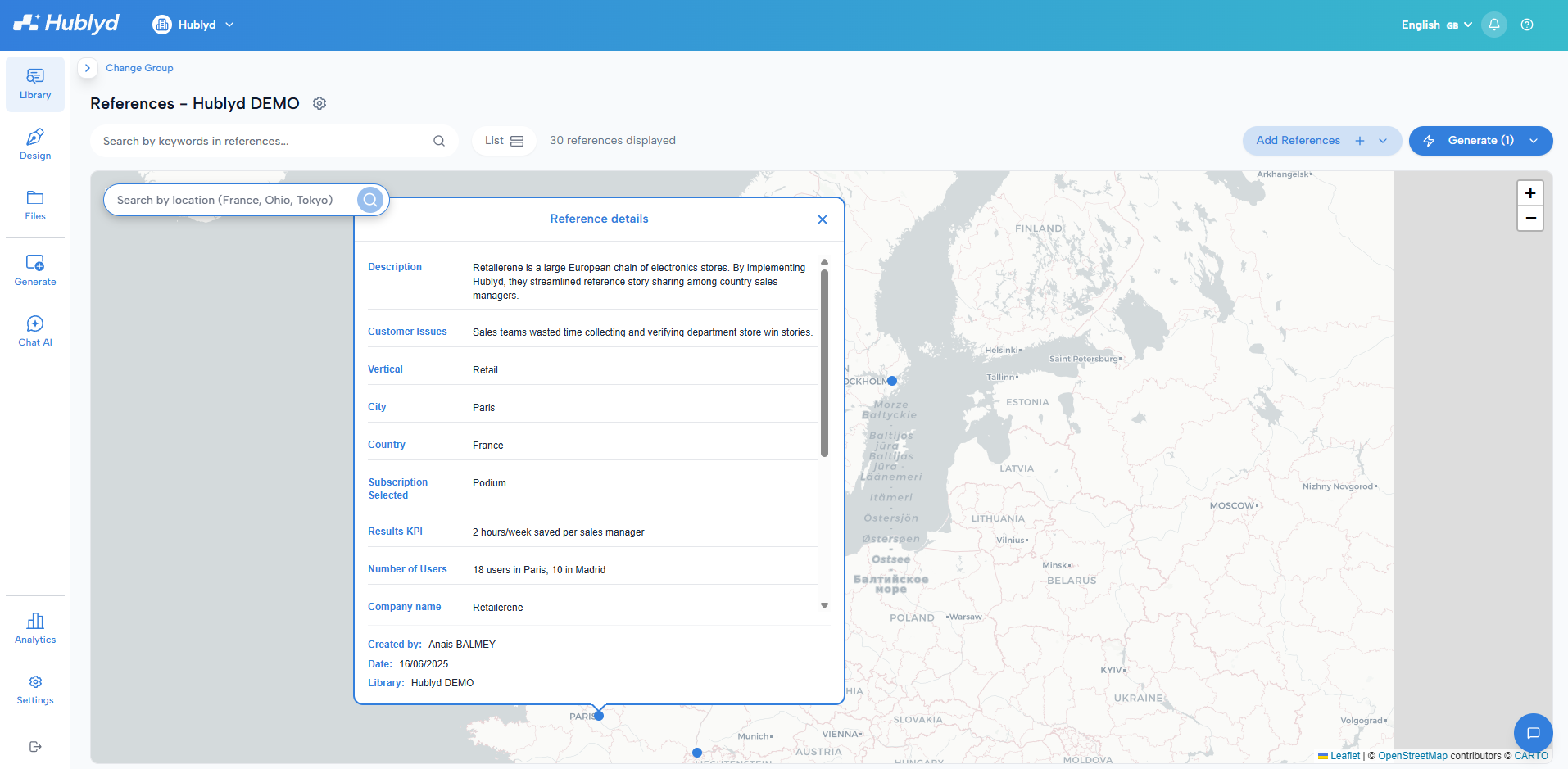
This panel shows the main fields of the selected reference. This allows you to quickly review a reference directly from the map without switching back to the table view.
Understanding search behavior in map view
Map view includes two different search inputs, each with a distinct purpose. Understanding the difference is essential.
1. Reference search (outside the map)
This search bar works exactly like the table search.
It searches inside reference fields, not geography.
Example:
Typing
Francewill display all references that mention “France”References may appear on the map even if their actual location is not France
This is useful when:
“France” is mentioned in the project context
The reference is related to France but located elsewhere
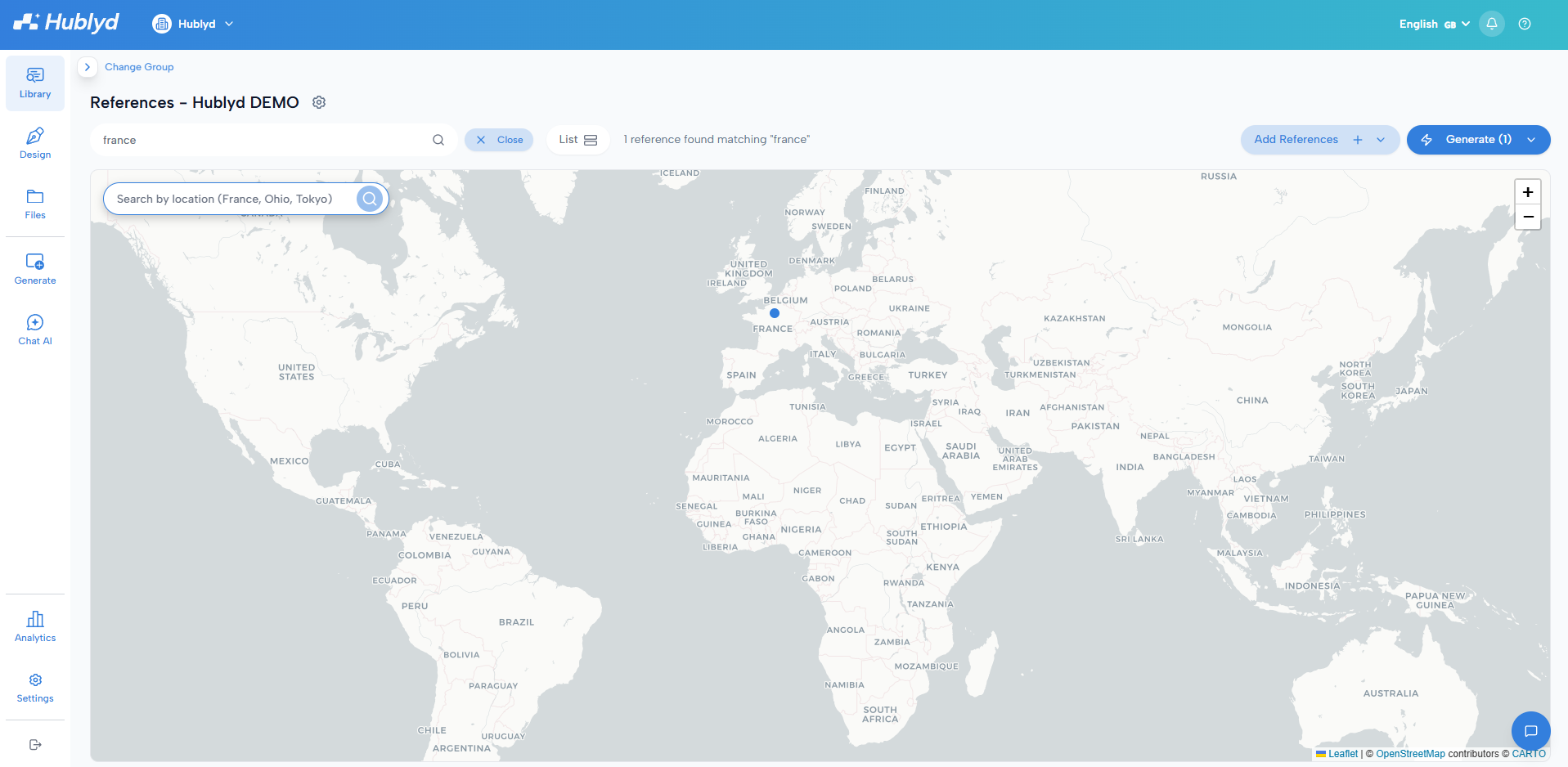
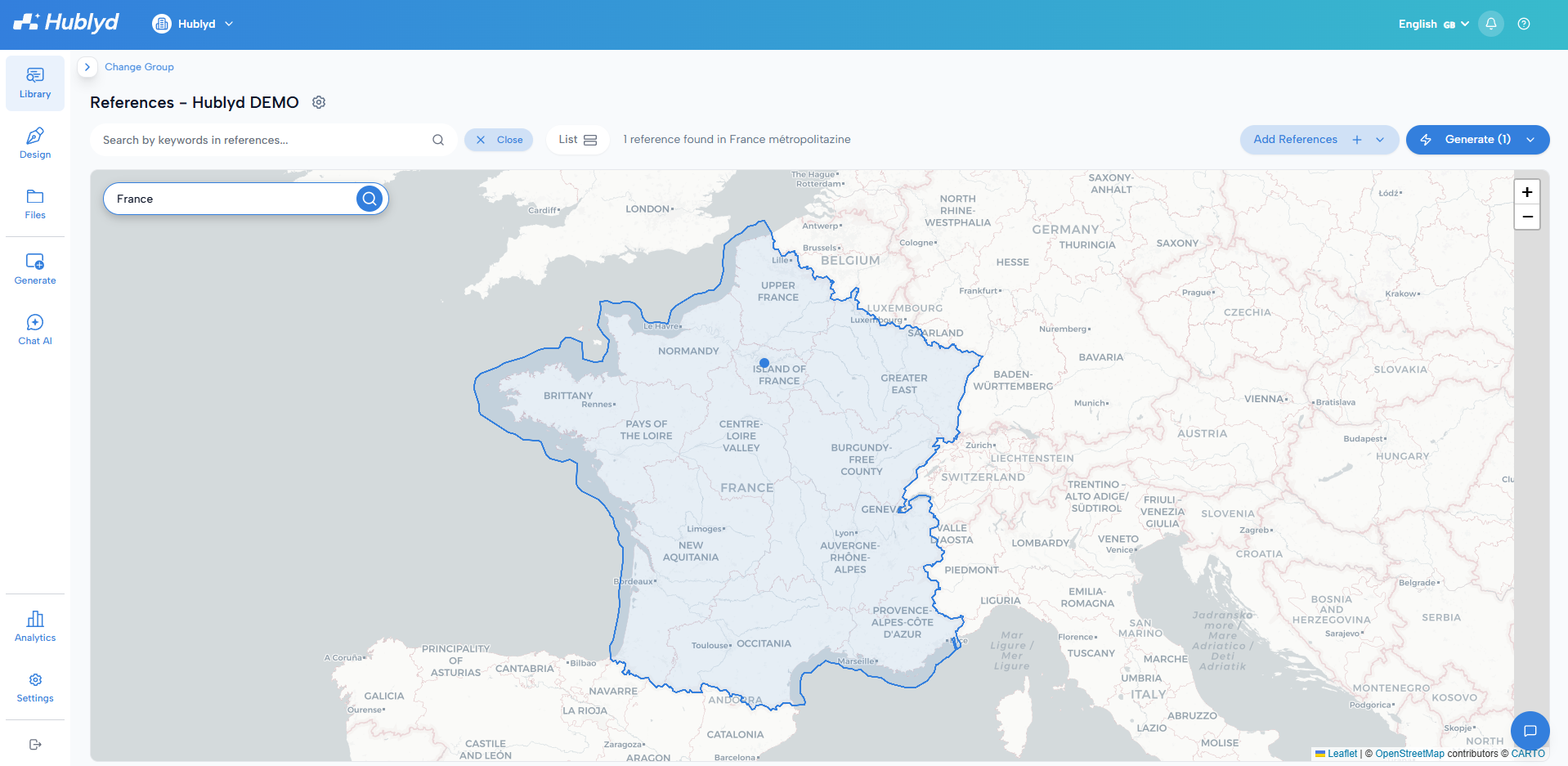
2. Location search (inside the map)
The search input inside the map is a geographic search.
It searches by real-world location, not reference text.
Example:
Typing
Francewill:Highlight France’s borders on the map
Display only references whose location data is in France
References outside France will not appear, even if they mention France in their fields.
Key difference to remember
Reference search = searches text inside reference fields
Location search = filters references by actual geographic location
Both searches can be used together, but they serve different purposes.
When to use each view
Use table view when you want to:
Search and filter by reference data
Select references for generation
Edit, duplicate, or manage references
Use map view when you want to:
Visualize references geographically
Explore references by country or region
Present geographic coverage visually
What’s next?
Next articles in the References section include:
Confidentiality and user access to references
This will explain how permissions, confidentiality, and visibility affect what users can see and do.
Was this helpful?
Still need help? Share an idea