Create a slide template
Templates are the foundation of slide generation in Hublyd. Before you can generate slide decks from your references, you need to create at least one template.
Written By Hublyd
Hublyd lets you create your template in two ways:
Create a template manually
Generate a template with AI
Both options lead to the same slide editor, where you can fully customize your template.
Start creating a template
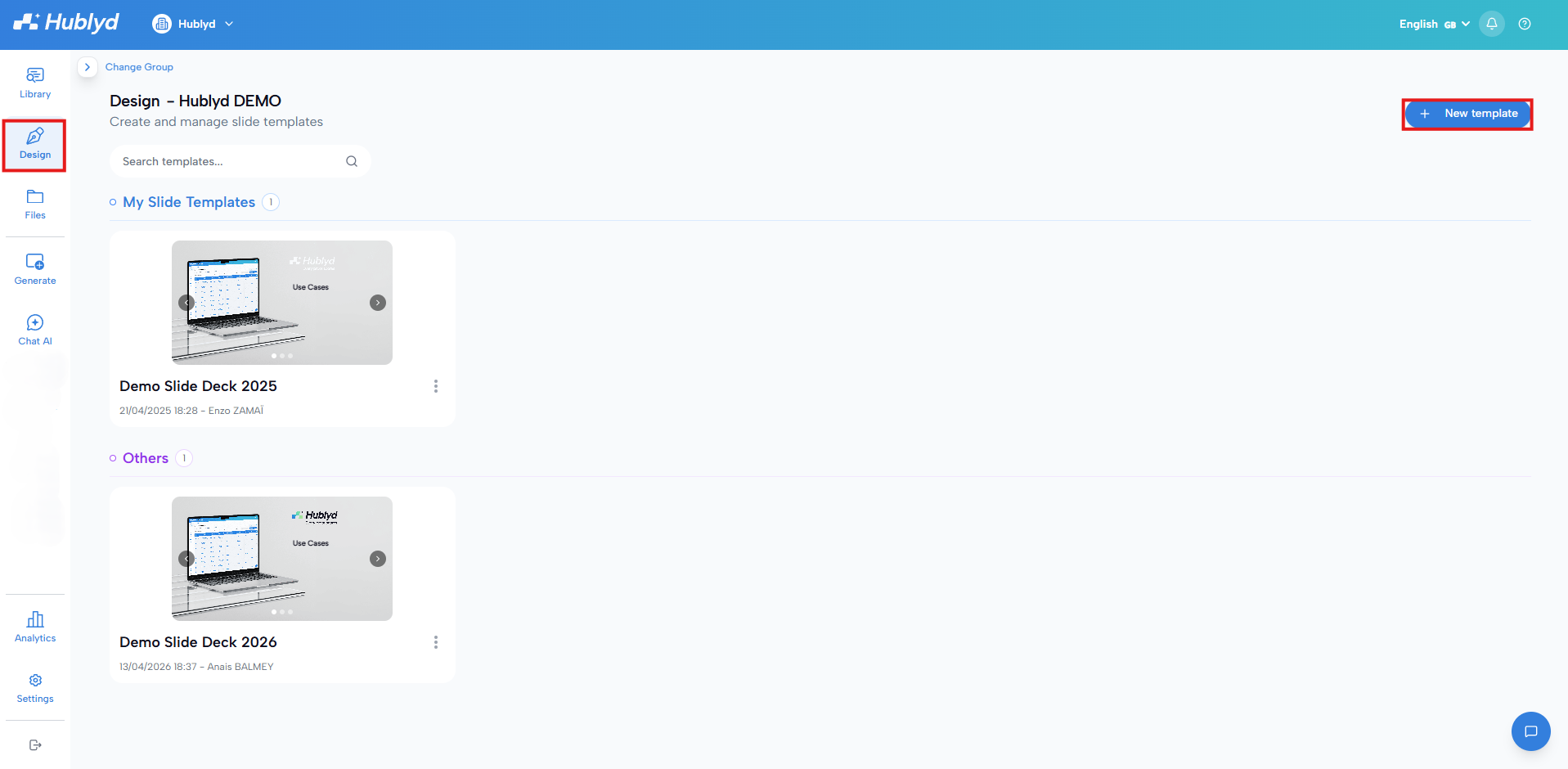
Go to the Design section and click New template.
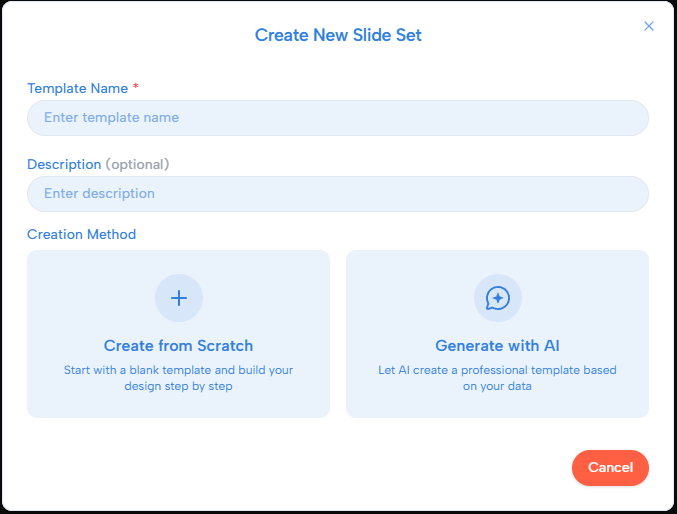
Template information
Template name (required): This helps you identify the template later when generating slides
Description (optional): Useful if you plan to create multiple templates for different use cases
Option 1: Create a template from scratch
Choose Create from Scratch if you want full control over your slide design.
This option opens the slide editor with a blank template so you can build your slides step by step.
Option 2: Generate a template with AI
Choose Generate with AI if you want Hublyd to create a professional template for you automatically.
Hublyd’s AI uses your reference structure and data to generate:
A slide layout
Suggested sections
A ready-to-use structure optimized for sales presentations
You can then fully edit and customize the generated template in the slide editor.
Understanding the slide editor
Once you’ve chosen a creation method, you’ll access the slide editor. This is where you design how your slides will look and how reference data will be displayed.
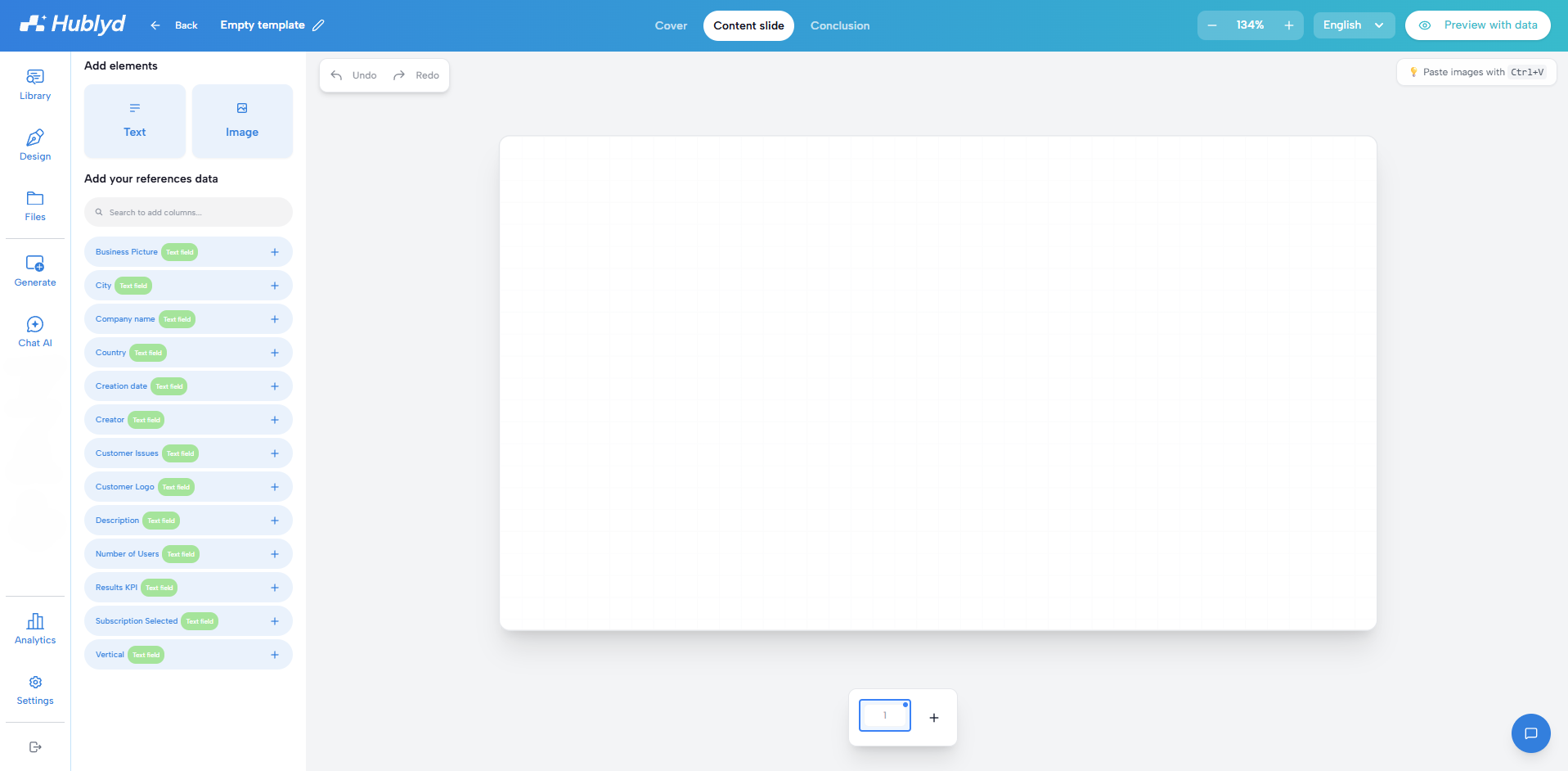
Slide structure (top navigation)
The layout is divided into three functional zones. Each zone automatically fetches data from its corresponding source. At the top of the editor, you can switch between:
Cover: The first slide of your presentation, typically used for title and introduction.
Data Source: Your Profile & Account Settings
What it displays: Information tied to the person or company presenting (e.g., Presenter's Full Name, Job Title, Your Company Logo, Date, and Meeting Subject). You don't need to type this manually for every deck.
Content slides: The main slides where you add your data fields and information
Data Source: Customer Database
What it displays: The actual proof points selected via SmartSearch or ChatAI (e.g., Client Name & Logo, Industry, Customer Challenges, Implemented Solutions, Key Metrics/KPIs, and Project Pictures). Each reference selected generates a structured content slide
Conclusion: The final slide, often used for closing remarks or contact information
Data Source: Your Profile & Account Settings
What it displays: Closing information and contact details (e.g., Direct Email, Phone Number, LinkedIn Profile, Company Website, and Call-to-Action).
This allows you to define different layouts for different parts of your presentation.
Adding elements to your slides (left panel)
From the left panel, you can add visual elements to your slides:
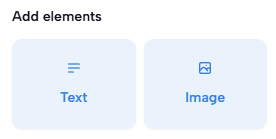
Text elements
Font, color, etc… can be modified by selecting the text itself, not the complete block
Images
The Hublyd "Add image" modal provides 3 image integration options:
Stock Photos (Integrated Unsplash Library)
Search for professional stock visuals directly within the interface using keyword searches (e.g., industry, tech).
Displays a grid of ready-to-use photos complete with photographer attributions (e.g., Photo by Ant Rozetsky on Unsplash) in compliance with Unsplash licensing.
Upload File (Local Upload)
Upload custom image files directly from your computer—ideal for customer logos, real project site photos, screenshots, or technical diagrams.
Unsplash URL (Direct Link)
Paste a direct link to a specific Unsplash photo to import it instantly without needing to run a search.
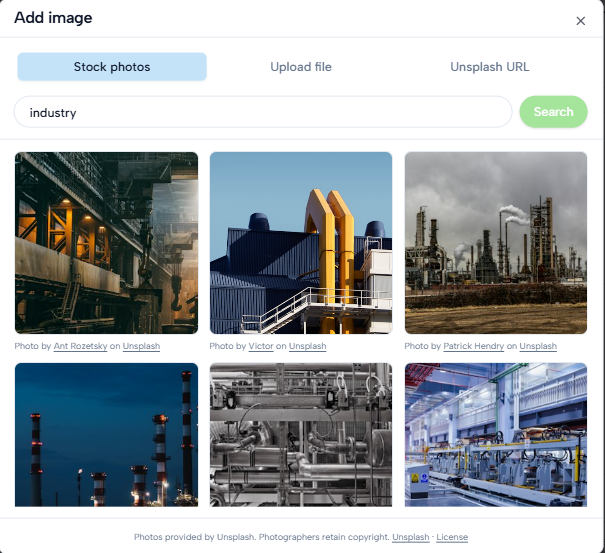
Image selection
Linking reference data to slides (left panel)
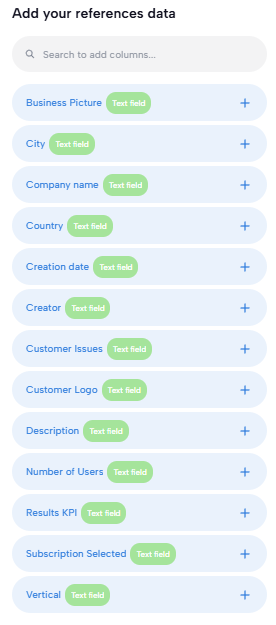
Below the elements section, you’ll find your reference columns.
These columns come from the reference structure you created earlier. When you add a column to a slide:
It becomes a dynamic placeholder
It will be automatically populated with real data when generating slides
When the field is placed on the slide, its color changes in the sidebar, allowing you to identify fields that have already been positioned. Additionally, clicking a field on the canvas highlights it in the sidebar
This is how Hublyd turns your references into personalized slide decks.
Managing languages
You can select the language for your template directly in the editor. This allows you to create multilingual templates and generate localized presentations later.
Preview your template with real data
In the top-right corner, you’ll find the Preview with data option.
This lets you:
Test your template using real reference data
See exactly how your slides will look when generated
Validate layouts, text length, and image placement

Using preview helps ensure your template works correctly before saving it.
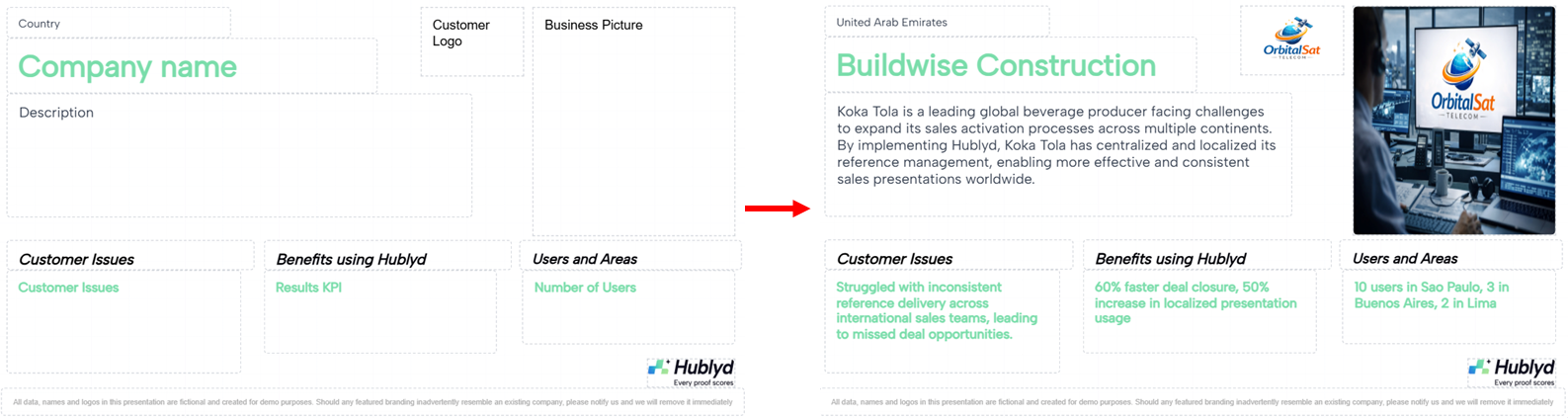
Adding and managing slides
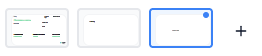
At the bottom of the editor, you can:
Add new slides
Duplicate existing slides
Reorder slides
This gives you full flexibility to structure your presentation.
Was this helpful?
Still need help? Share an idea