Generate a presentation
Once you have references and at least one template, you’re ready to generate a presentation in Hublyd. Presentation generation can be triggered from different places in the app, but in this article we’ll focus on generating slides from the Generate page, which is the most common and guided flow.
Written By Hublyd
Step 1: Choose what you want to generate
From the Generate page, you’ll first be asked what type of content you want to create.
For this guide, select Slides.
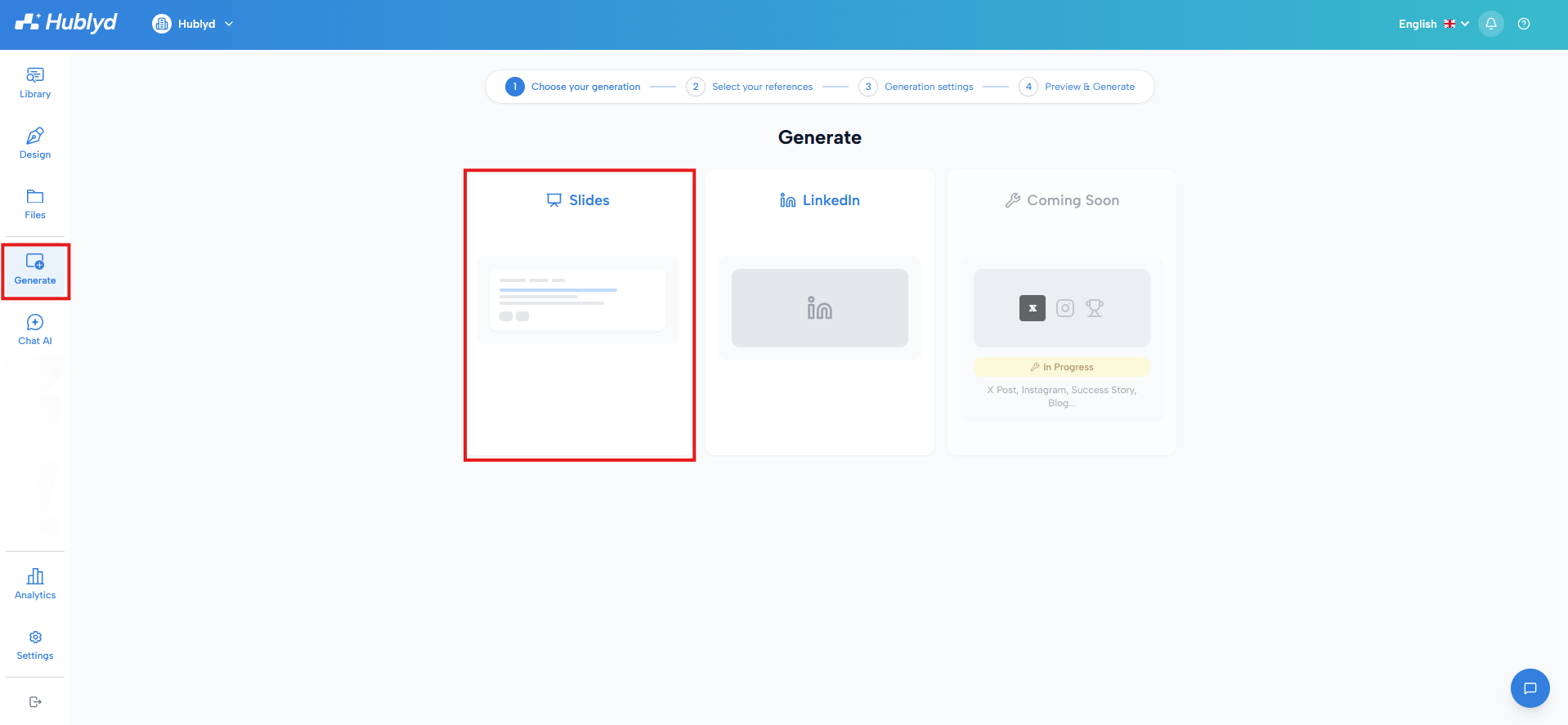
This tells Hublyd that you want to generate a presentation using your references and templates.
Step 2: Search and select your references
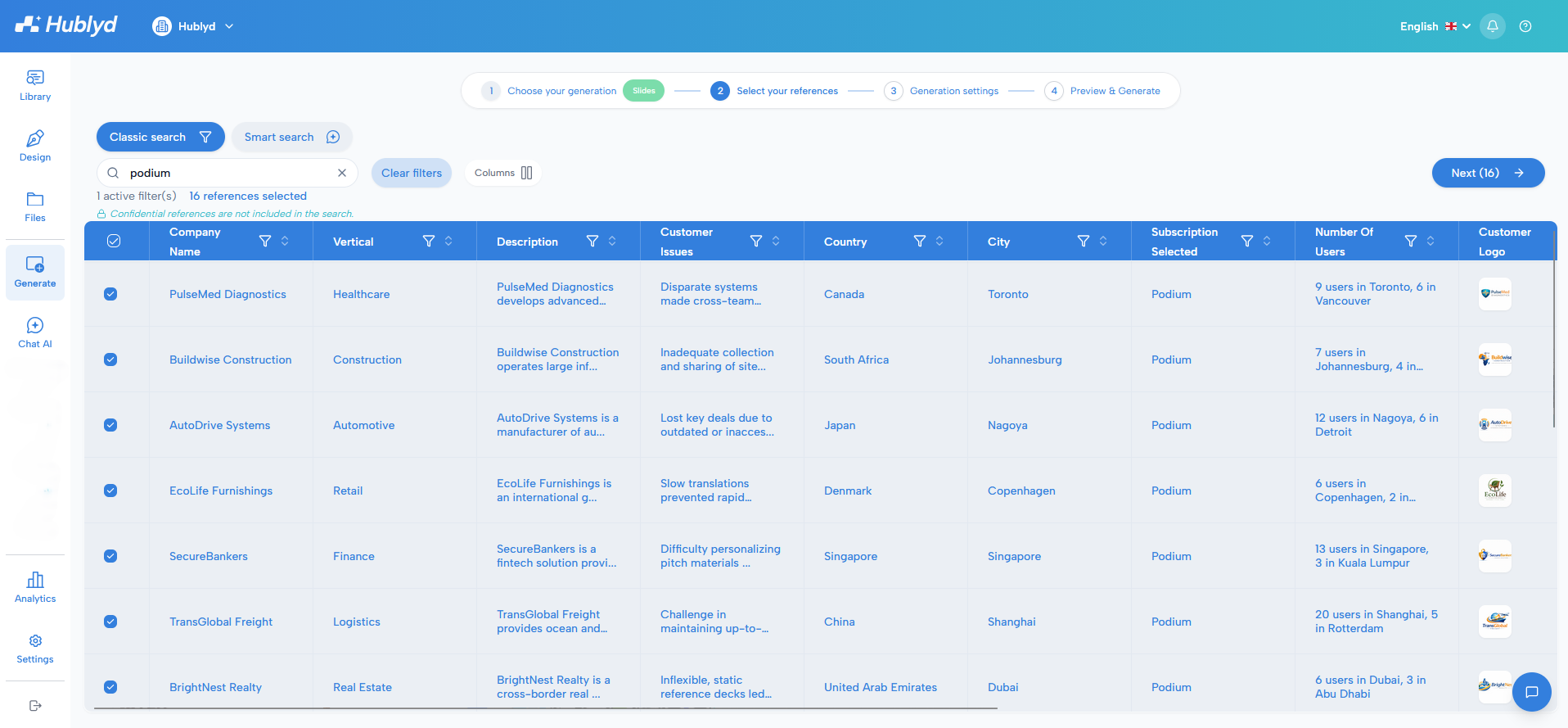
Next, you’ll choose which references should be used to populate your slides. Hublyd offers two ways to search and select references.
Option 1: Classic search and filters
You can use:
The search bar to look for references by keyword
Filters to narrow results by attributes (industry, location, tags, etc.)
You can freely:
Select and unselect references
Combine filters and search terms
This method gives you full manual control over which references are included.
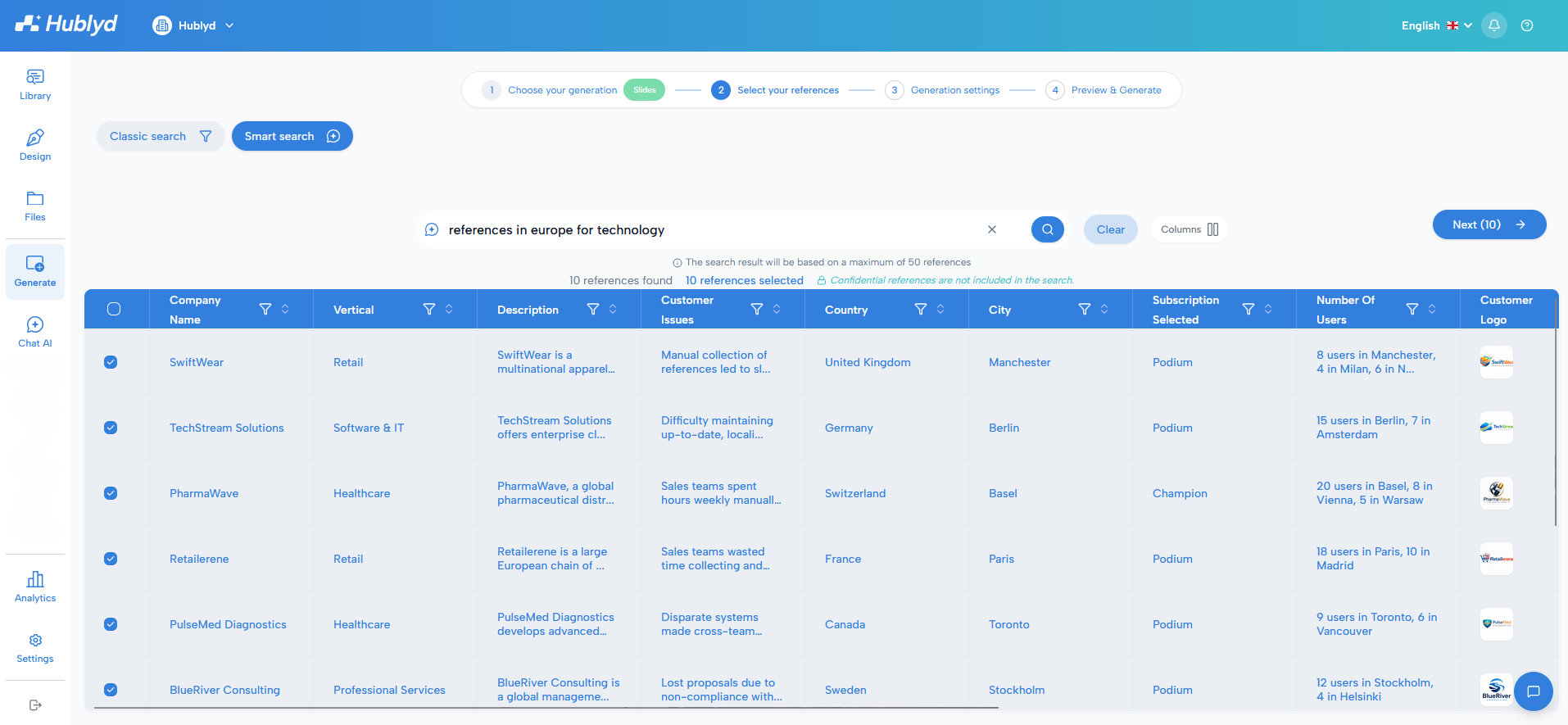
Option 2: Smart Search (AI-powered)
Note: this feature is only availbale on premium plans (Warm up and Podium)
You can also use Smart Search, which performs an AI-powered search across your entire reference database.
Simply describe what you’re looking for (for example: a specific industry, use case, or type of client), and Hublyd’s AI will automatically select the most relevant references.
This is ideal when:
You don’t know exactly which references to pick
You want the most relevant results fast
Step 3: Configure and generate your presentation
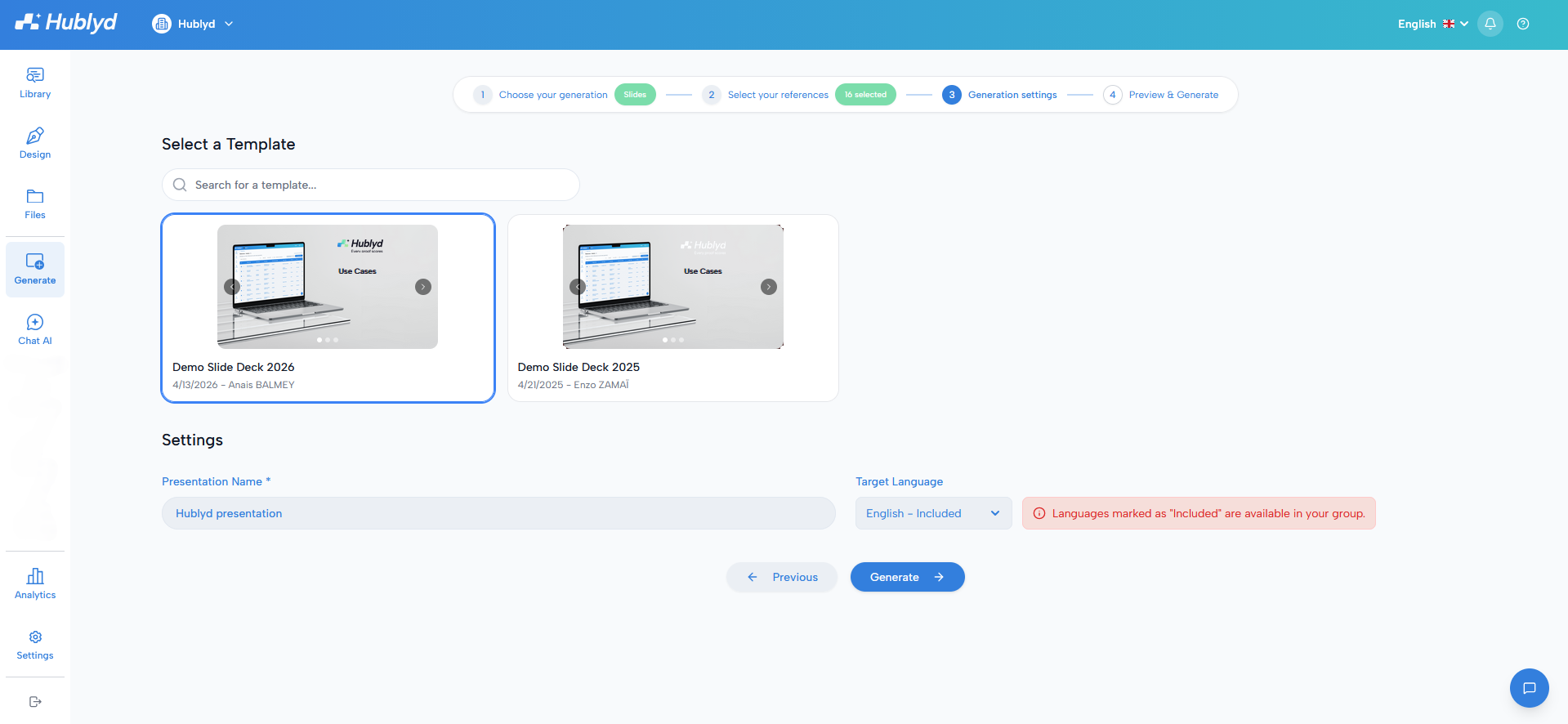
Once your references are selected, you’ll configure how your presentation will be generated.
Choose a template
Select one of the slide templates you created earlier. The template defines the structure and layout of your presentation.
Name your presentation
Give your presentation a name so you can easily find it later in your library.
Select the language
Choose the language for the generated slides:
Select from the included languages in your workspace
Or define a custom language
Please note:
Custom languages can be disabled by an admin
Custom languages may generate additional costs depending on your subscription plan
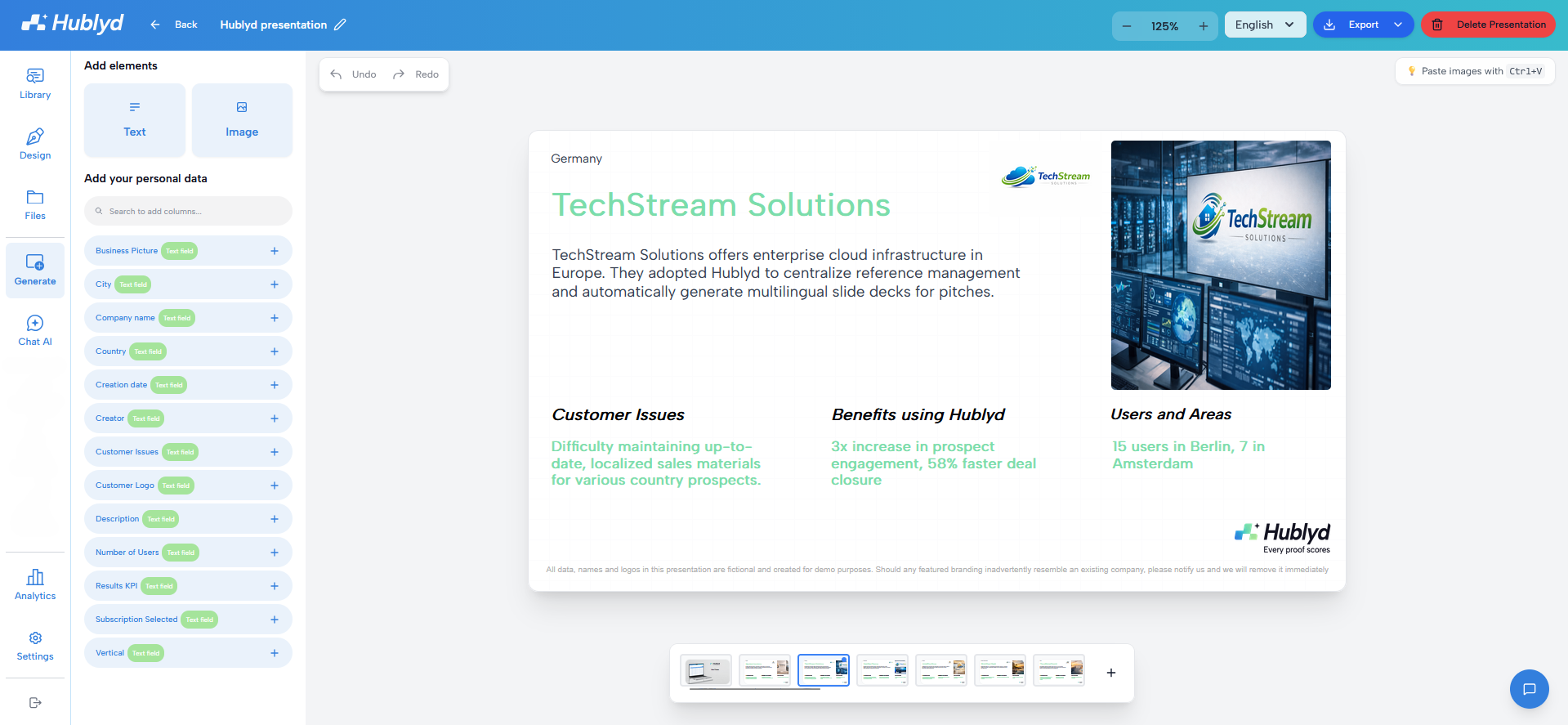
After generation: edit, validate, and export
Once the slides are generated, you can:
Open them in the slide editor
Make final edits to text, images, or layout
Validate the presentation
When you’re ready, you can export your slides in:
PDF
PowerPoint (PPTX)
This allows you to share or present your slides anywhere.
Was this helpful?
Still need help? Share an idea