Creating references by importing data rows(CSV / XLS)
Importing references is the fastest way to add a large number of references at once.
Written By Hublyd
Supported file formats
CSV
Excel (XLS / XLSX)
⚠️ We highly recommend using a file with the same columns as your Hublyd library.
Hublyd can only add new columns to the schema during import—no existing data will be lost.
How to import references
Go to the References section
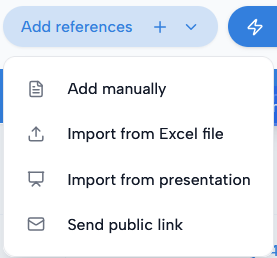
Click Add references
Select Import from Excel files
Choose CSV or Excel
Upload your file
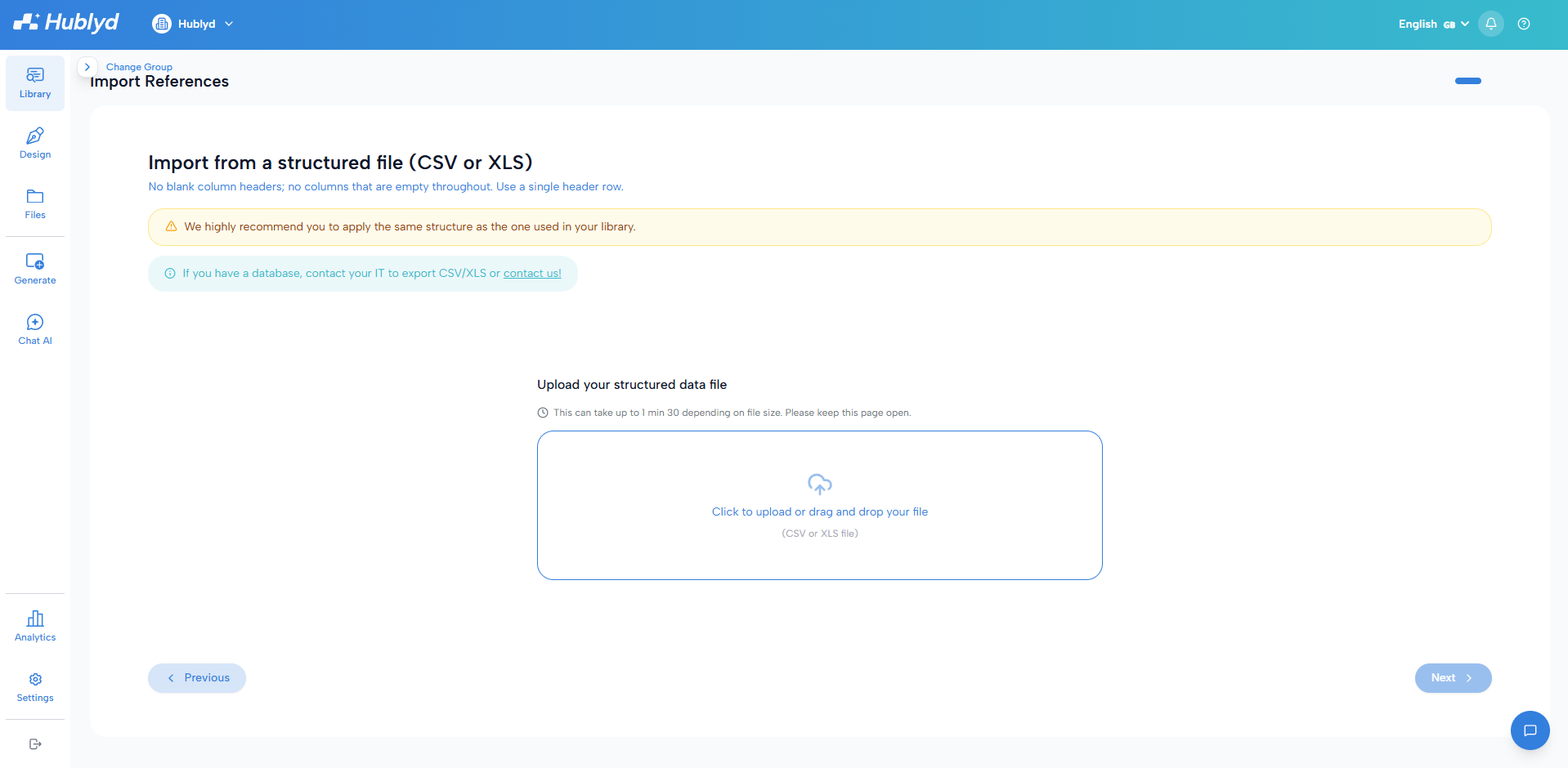
Preview and verification before importing
Once your Excel or CSV file is uploaded, Hublyd displays a preview of the detected columns and sample data.
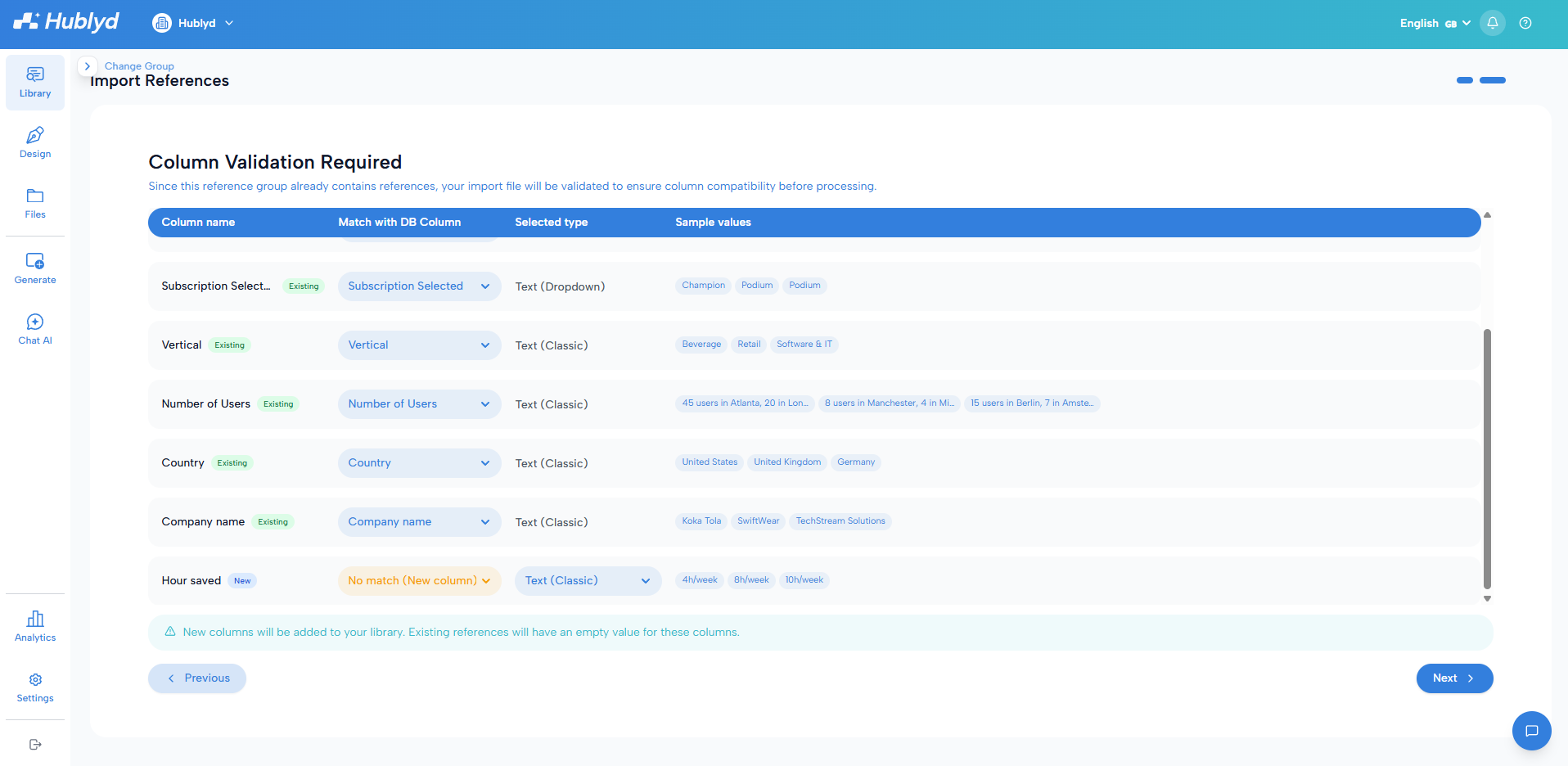
If you import references into an existing library, Hublyd’s AI automatically tries to match the columns from your file with the existing columns in your database.
⚠️ Before continuing, carefully check that each column is correctly matched. If a column is detected as new, you can add it to your library and configure it before importing.
For each new column, make sure you define:
The column type, such as text, dropdown, date, URL, image, or document.
Untranslated data, when the values should stay exactly as provided, such as company names, brand names, or people’s first and last names.
Location data, when the column is used to display references on the map, such as country, city, or region.
New columns will be added to the library, and existing references will have an empty value for these columns until they are updated.
Final review before import
Before confirming the import, you can review all detected rows and deselect any references you do not want to import.
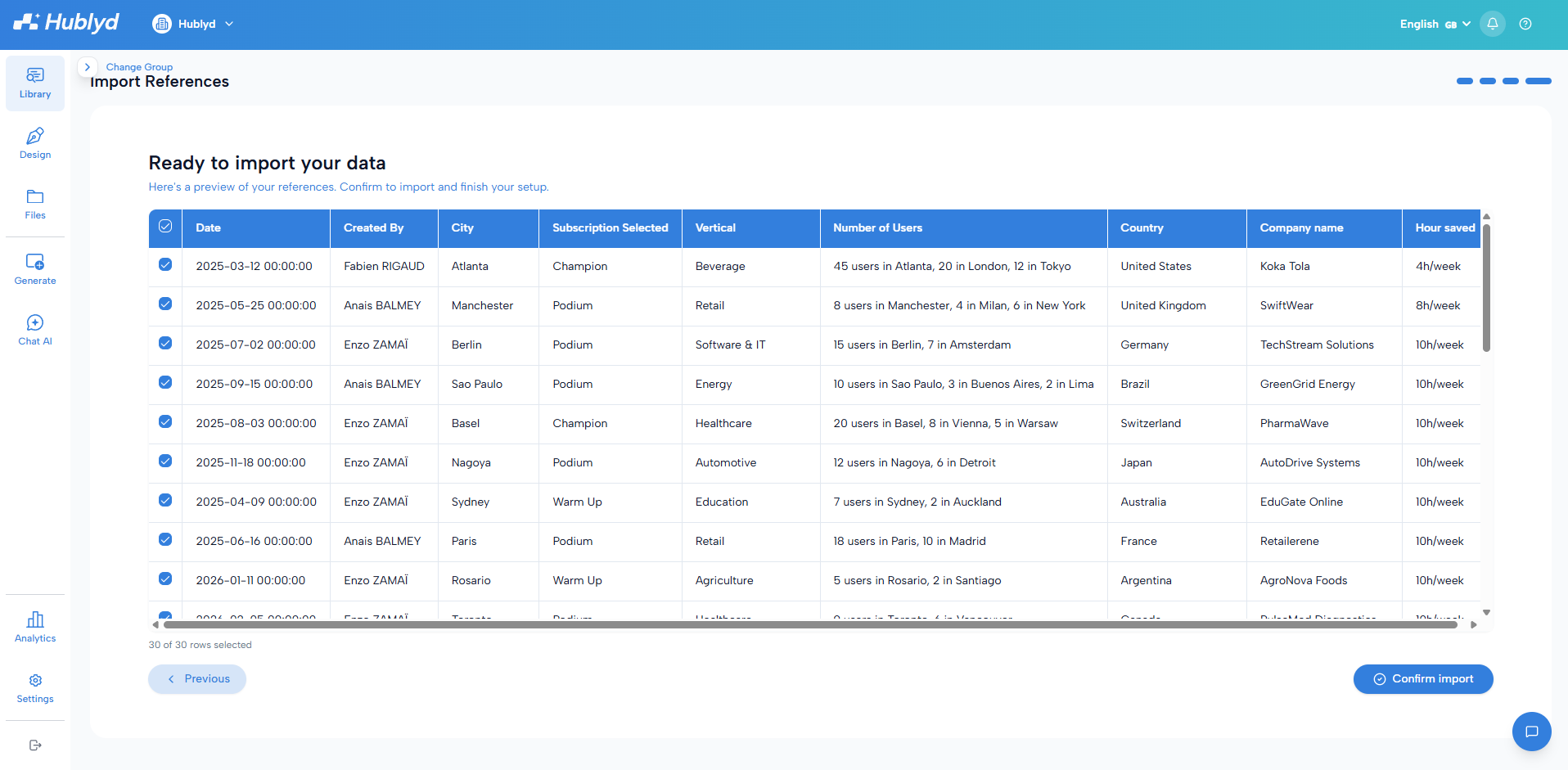
Only selected rows will be added to your library. Once everything looks correct, click Confirm import.
Import result
If the file is valid:
All references will be added as new rows
They will immediately be available in the library
If not:
The system will throw an error explaining what needs to be fixed
When to use imports
Imports are ideal when:
Migrating existing customer references
Adding large datasets
Working from structured spreadsheets
Was this helpful?
Still need help? Share an idea