Generating LinkedIn posts
Learn how to generate LinkedIn posts from your references, select the right content, customize the tone and language, and copy the generated variants for publication.
Written By Hublyd
Step 1: Choose what you want to generate
From the Generate page, you’ll first be asked what type of content you want to create.
For this guide, select Slides.
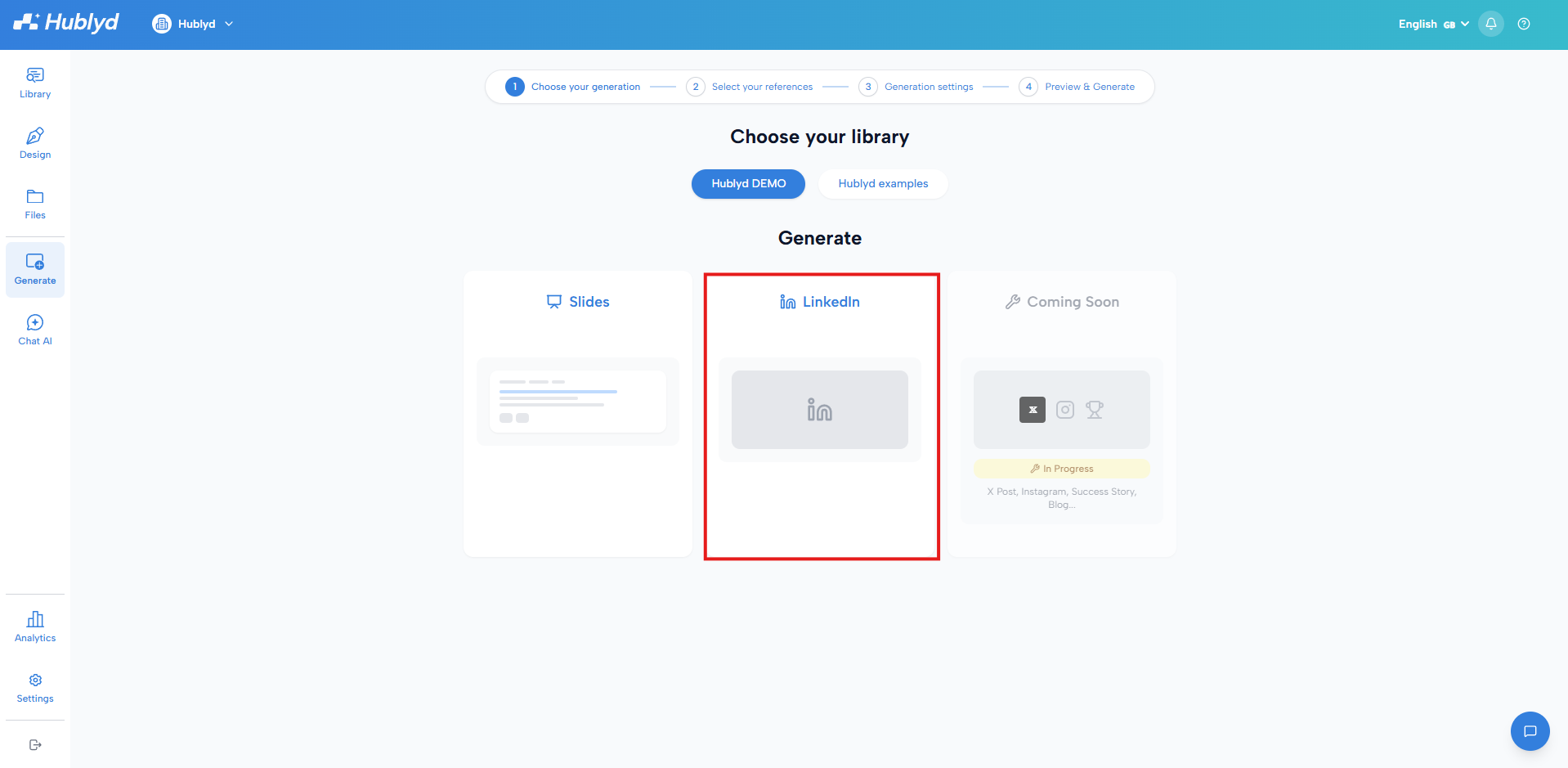
This tells Hublyd that you want to generate a presentation using your references and templates.
Step 2: Search and select your references
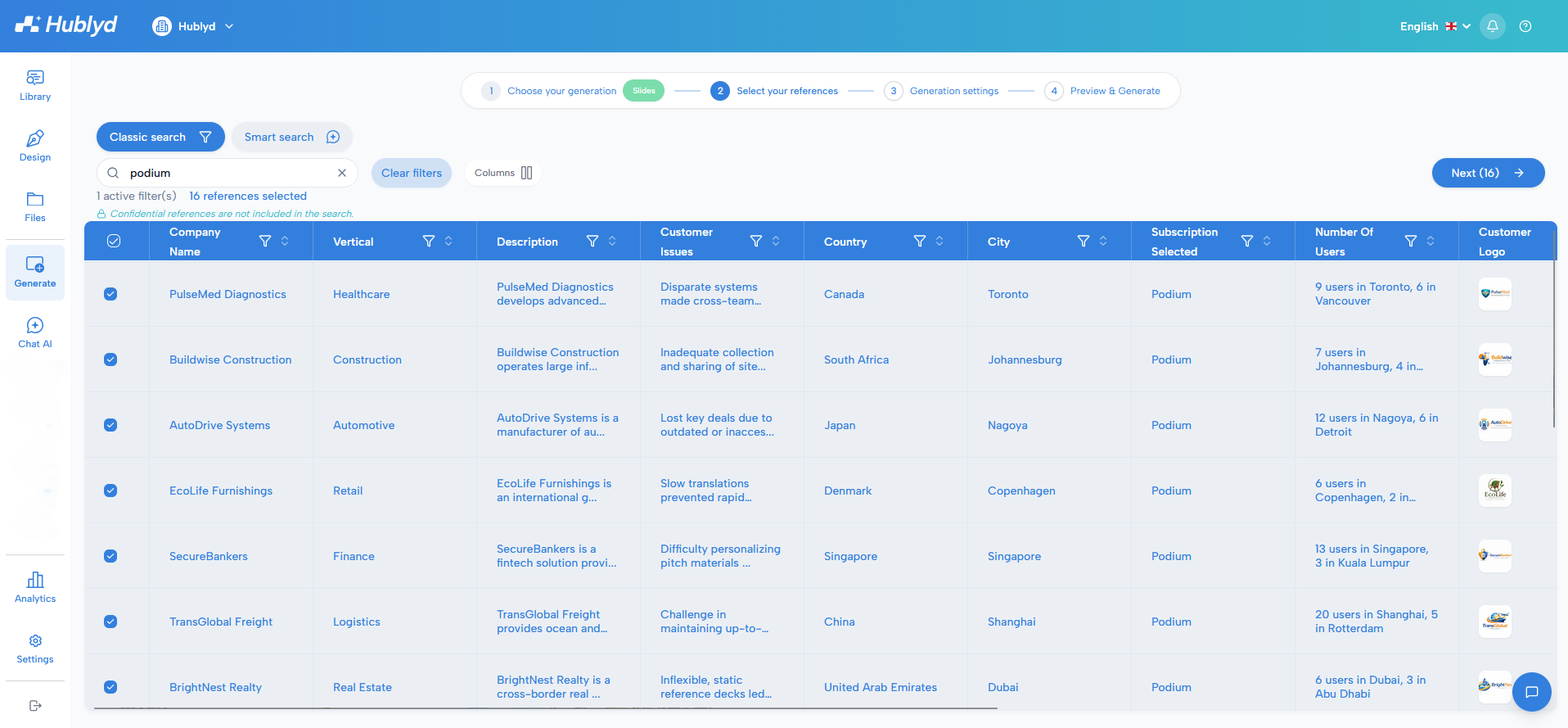
Next, you’ll choose which references should be used to populate your slides. Hublyd offers two ways to search and select references.
Option 1: Classic search and filters
You can use:
The search bar to look for references by keyword
Filters to narrow results by attributes (industry, location, tags, etc.)
You can freely:
Select and unselect references
Combine filters and search terms
This method gives you full manual control over which references are included.
Option 2: Smart Search (AI-powered)
Note: this feature is only availbale on premium plans (Warm up and Podium)
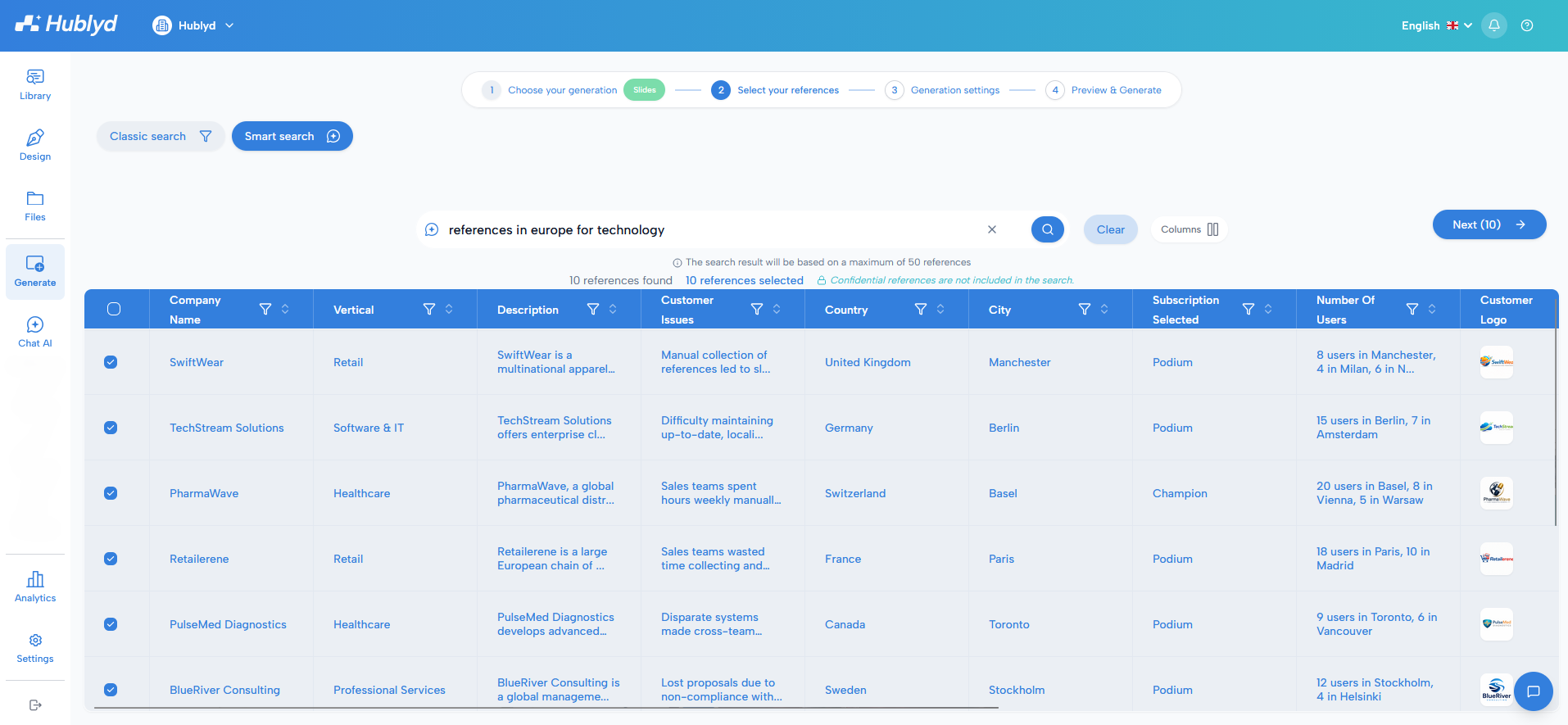
You can also use Smart Search, which performs an AI-powered search across your entire reference database.
Simply describe what you’re looking for (for example: a specific industry, use case, or type of client), and Hublyd’s AI will automatically select the most relevant references.
This is ideal when:
You don’t know exactly which references to pick
You want the most relevant results fast
Step 3: Configure your LinkedIn post
Once your references are selected, configure the LinkedIn content you want to generate.
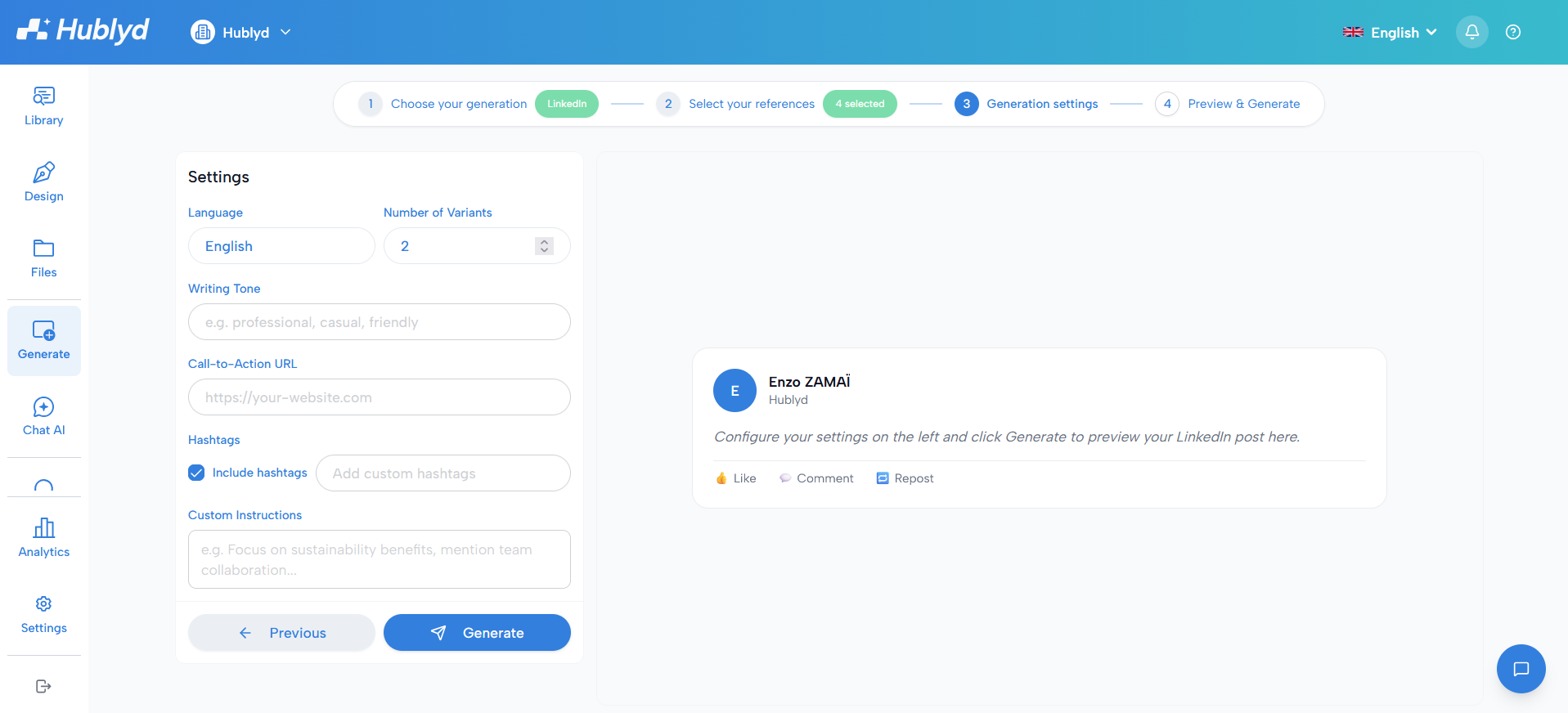
You can define:
Language: the language of the generated post.
Writing tone: the tone you want to use, such as professional, casual, or friendly.
Number of variants: the number of post versions Hublyd should generate.
Call-to-action URL: an optional link to include in the post.
Hashtags: choose whether to include hashtags, and optionally add custom hashtags.
Custom instructions: add specific guidance for the AI, such as highlighting a benefit, focusing on a topic, or mentioning a key message.
Once everything is configured, click Generate.
Step 4: Preview and use the generated content
After generation, Hublyd displays the generated LinkedIn content.
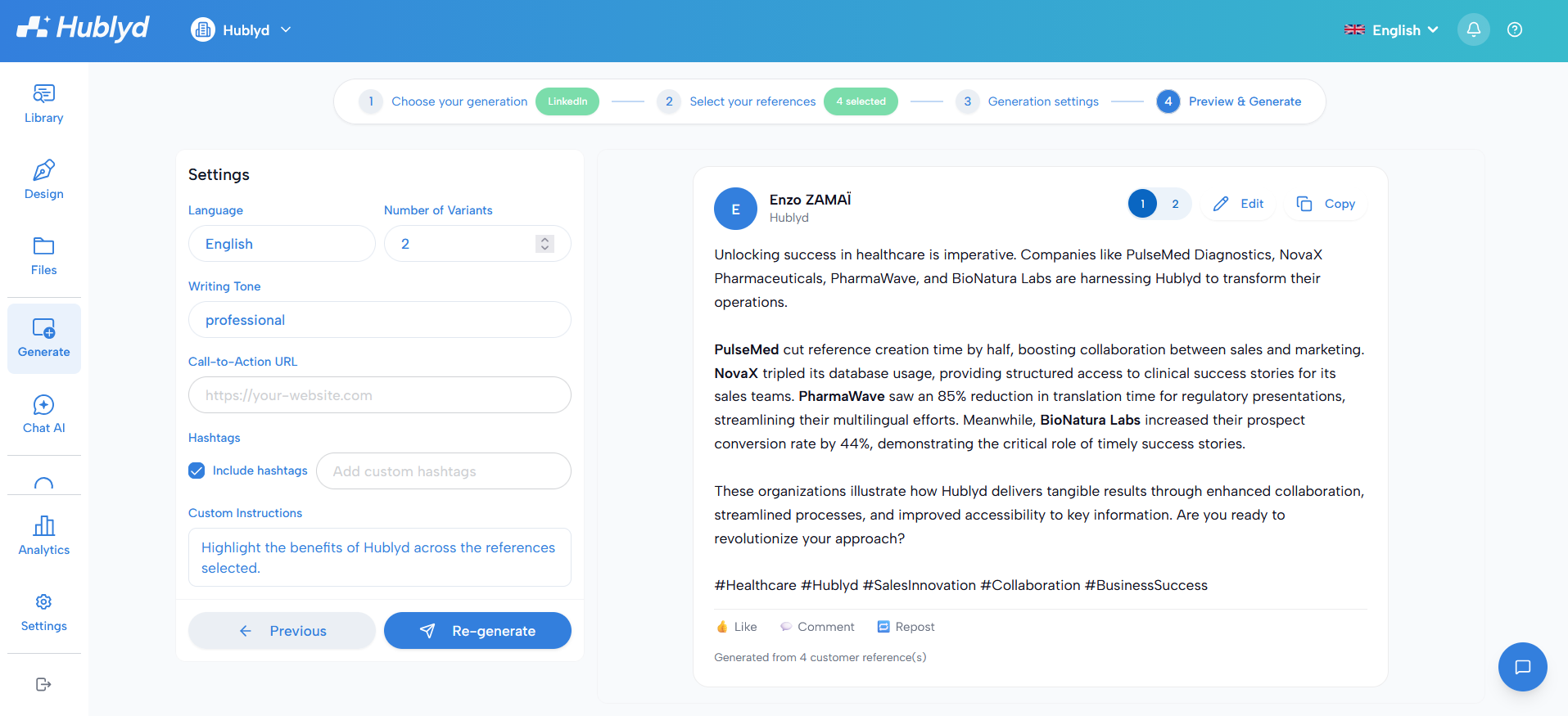
If several variants were requested, you can switch between them using the variant selector.
You can then review the post, adjust the generation settings if needed, and click Re-generate to create a new version. When the content is ready, click Copy to copy the post and use it on LinkedIn.
Was this helpful?
Still need help? Share an idea