Create your first template
Templates are the foundation of slide generation in Hublyd. Before you can generate slide decks from your references, you need to create at least one template.
Written By Hublyd
Hublyd lets you create your first template in two ways:
Create a template manually
Generate a template with AI
Both options lead to the same slide editor, where you can fully customize your template.
Start creating a template
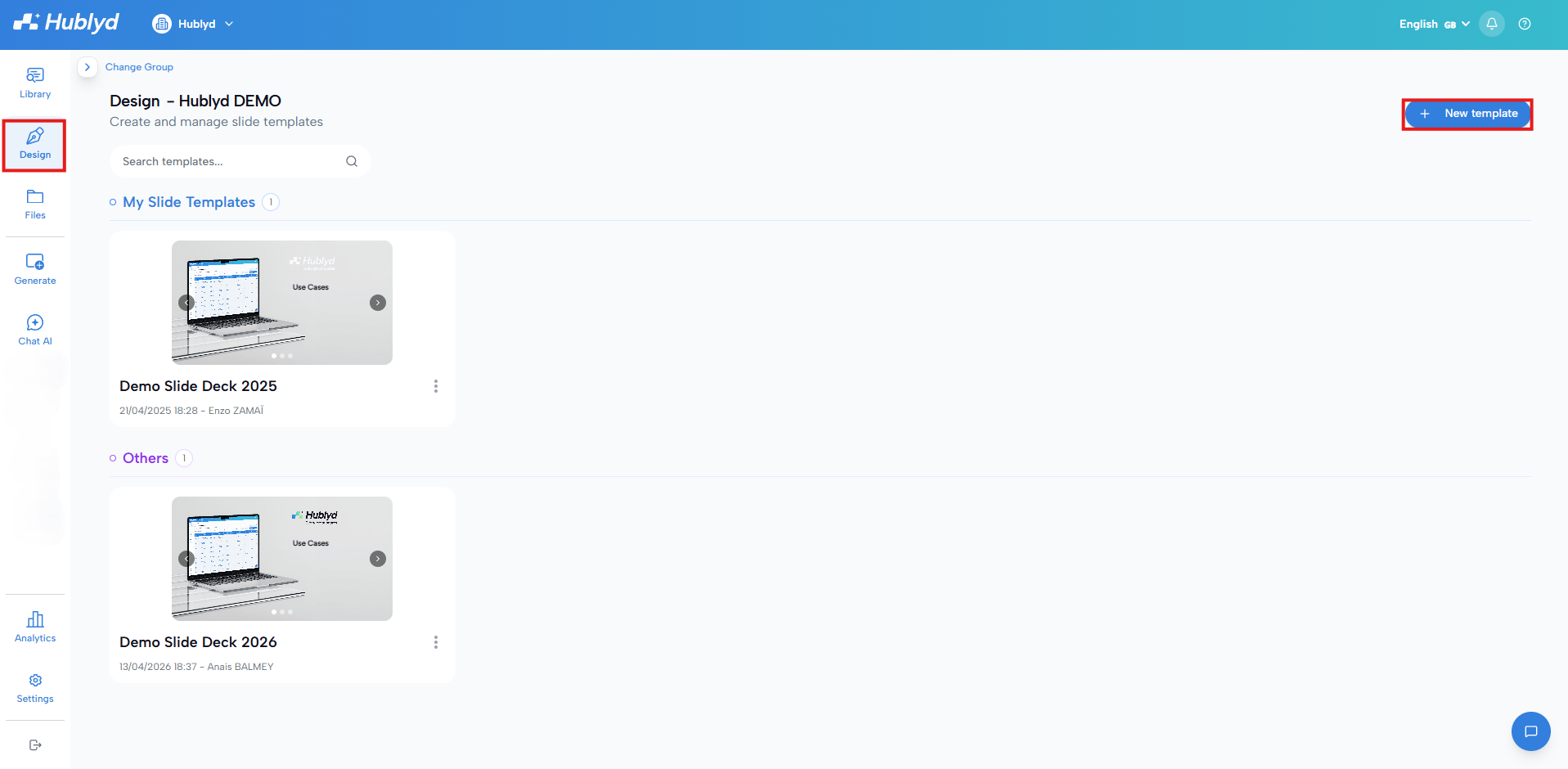
Go to the Design section and click New template.
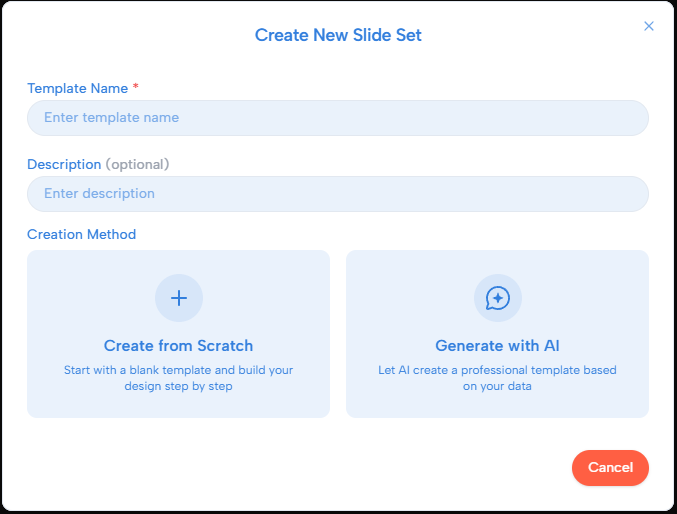
Template information
Template name (required): This helps you identify the template later when generating slides
Description (optional): Useful if you plan to create multiple templates for different use cases
Option 1: Create a template from scratch
Choose Create from Scratch if you want full control over your slide design.
This option opens the slide editor with a blank template so you can build your slides step by step.
Option 2: Generate a template with AI
Choose Generate with AI if you want Hublyd to create a professional template for you automatically.
Hublyd’s AI uses your reference structure and data to generate:
A slide layout
Suggested sections
A ready-to-use structure optimized for sales presentations
You can then fully edit and customize the generated template in the slide editor.
Understanding the slide editor
Once you’ve chosen a creation method, you’ll access the slide editor. This is where you design how your slides will look and how reference data will be displayed.
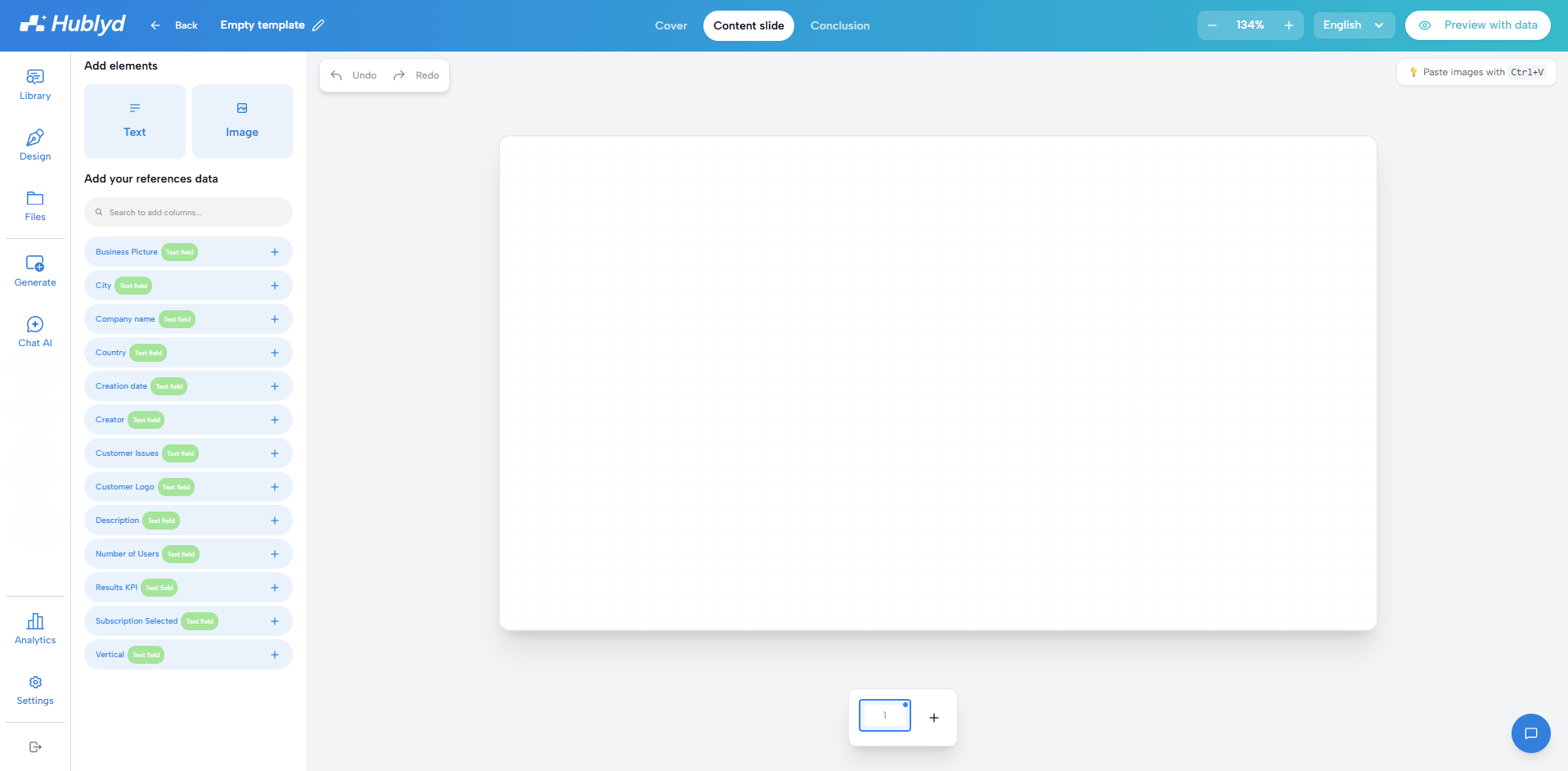
Slide structure (top navigation)
At the top of the editor, you can switch between:
Cover: The first slide of your presentation, typically used for title and introduction
Content slides: The main slides where you add your data fields and information
Conclusion: The final slide, often used for closing remarks or contact information
This allows you to define different layouts for different parts of your presentation.
Adding elements to your slides (left panel)
From the left panel, you can add visual elements to your slides:
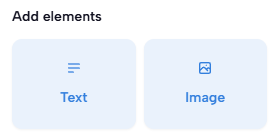
Text elements
Images
Simply add elements to the canvas and position them where you want.
Linking reference data to slides (left panel)
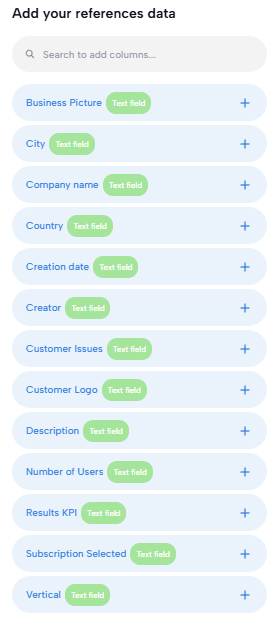
Below the elements section, you’ll find your reference columns.
These columns come from the reference structure you created earlier. When you add a column to a slide:
It becomes a dynamic placeholder
It will be automatically populated with real data when generating slides
This is how Hublyd turns your references into personalized slide decks.
Managing languages
You can select the language for your template directly in the editor. This allows you to create multilingual templates and generate localized presentations later.
Preview your template with real data
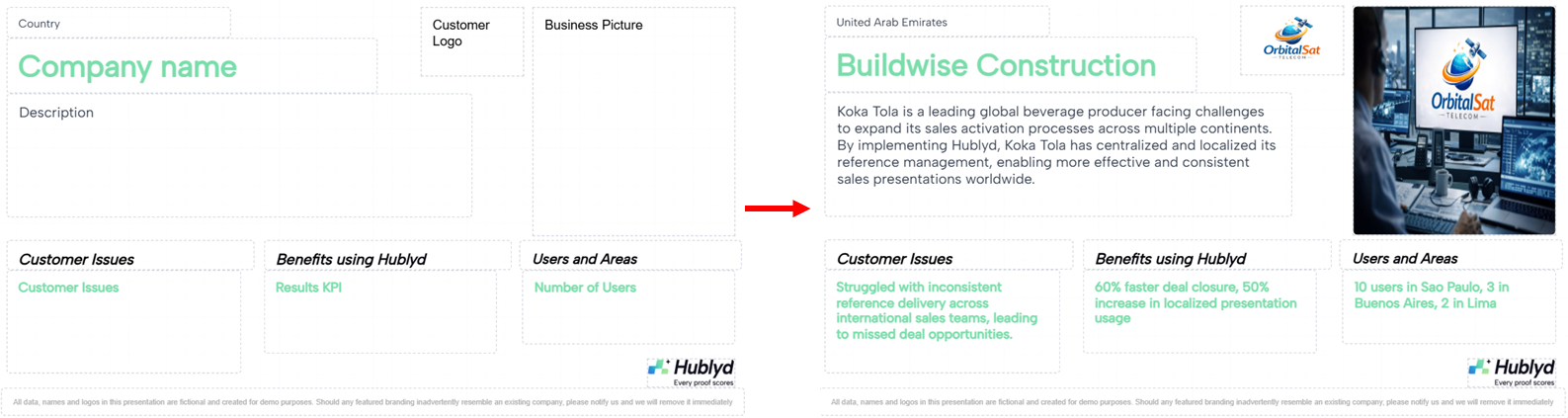
In the top-right corner, you’ll find the Preview with data option.
This lets you:
Test your template using real reference data
See exactly how your slides will look when generated
Validate layouts, text length, and image placement

Using preview helps ensure your template works correctly before saving it.
Adding and managing slides
At the bottom of the editor, you can:
Add new slides
Duplicate existing slides
Reorder slides
This gives you full flexibility to structure your presentation.

What’s next?
Now that you have:
References added
A slide template created
You’re ready to generate your first slide deck using Hublyd.
➡️ Next article: Generate your first slides
We’ll show you how to:
Select references
Choose a template
Generate a personalized presentation in seconds
Was this helpful?
Still need help? Share an idea