Managing and modifying references
Once references are created, Hublyd gives you full control to edit, duplicate, organize, and remove them. This article explains how to manage references from the table view and how to modify individual reference data.
Written By Hublyd
Permissions and access control
The ability to edit, duplicate, delete, or mark references as confidential depends on your user role and permissions within Hublyd.
Depending on your workspace configuration:
Some users may have read-only access
Others may be allowed to edit or duplicate references
Only users with the appropriate permissions (for example, editors or administrators) can:
Modify reference data
Delete references
Change confidentiality settings
If an action is not available to you, it means your role does not allow it.
Detailed permission rules, roles, and access levels are explained in the article:
Confidentiality and user access to references
Accessing reference actions
All reference management actions are available directly from the references table.
To access them:
Hover over a reference row
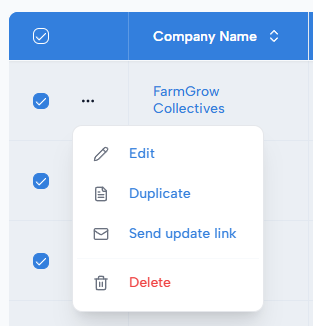
Click the ⋯ (more actions) menu
From there, you can:
Edit
Duplicate
Send update link
Delete
Editing a reference
Editing a reference allows you to update or correct data at any time.
How to edit a reference
Open the ⋯ menu on a reference row
Click Edit
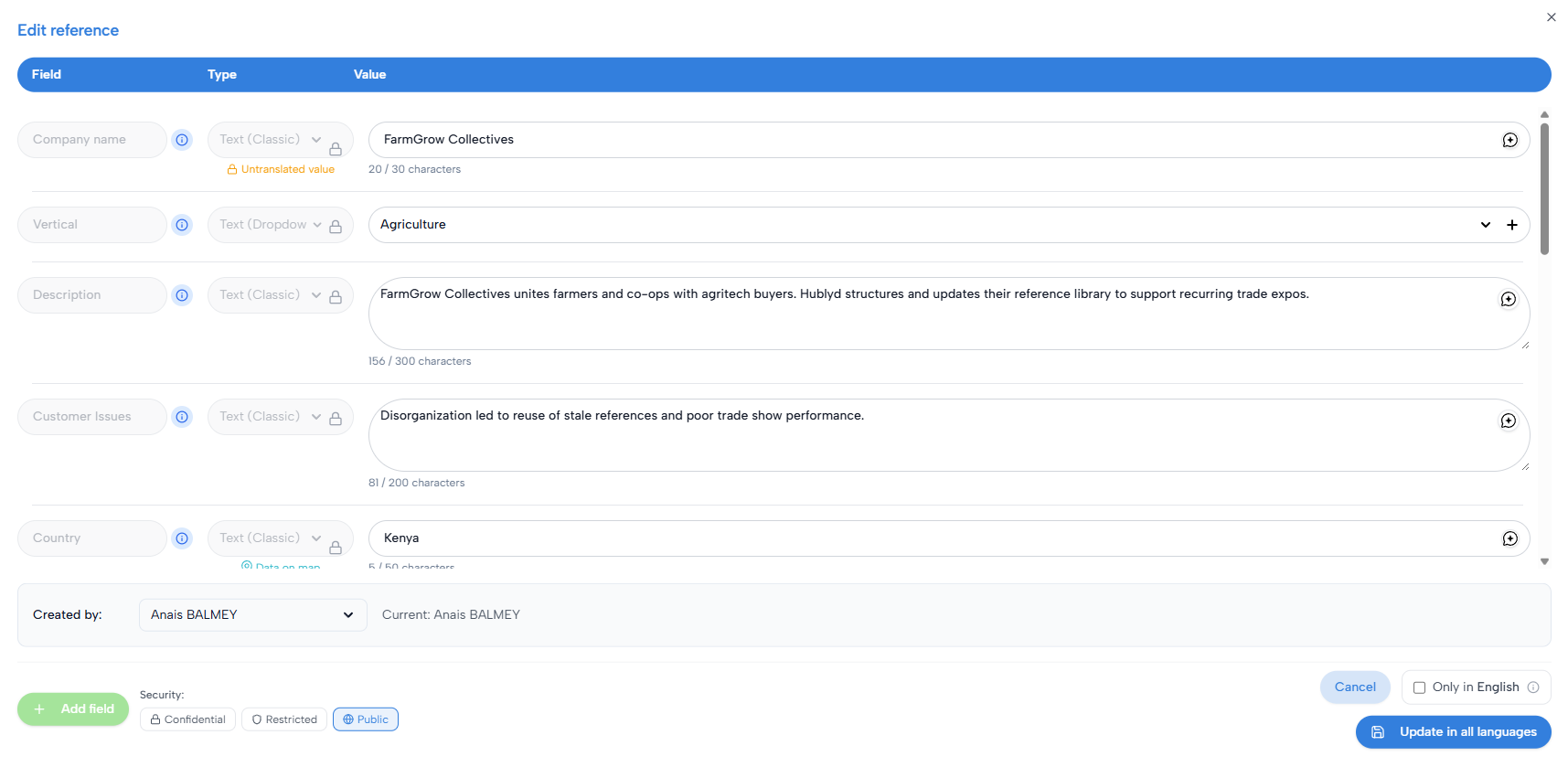
This opens the Edit reference form.
Understanding the edit form
The edit form displays:
One row per column in your library
The field name
The field type
The current value
You can update values depending on the field type:
Text and dropdowns
Dates
URLs
Images or documents
Some fields may appear locked. These are controlled by the library schema and cannot be modified here.
You can also add a new column if needed; other entries will have an empty value for this column.
When saving your changes, you can choose how the update is applied across languages:
Leave Only in English unchecked to automatically translate and update the reference in all languages of the group.
Check Only in English if you want to update only the current language, without modifying the translated versions.
Saving changes
Once you’re done editing:
Click Update reference to save
Or Cancel to discard changes
Changes are applied immediately and will affect future slide generation.
Duplicating a reference
Duplicating a reference is useful when:
Multiple projects share similar data
You want to reuse a reference as a starting point
How to duplicate a reference
Open the ⋯ menu on a reference row
Click Duplicate
A new reference is created with the same values. You can then edit it as needed.
Updating a reference via public link
Note: this feature is only available on premium plans (Warm up and Podium)
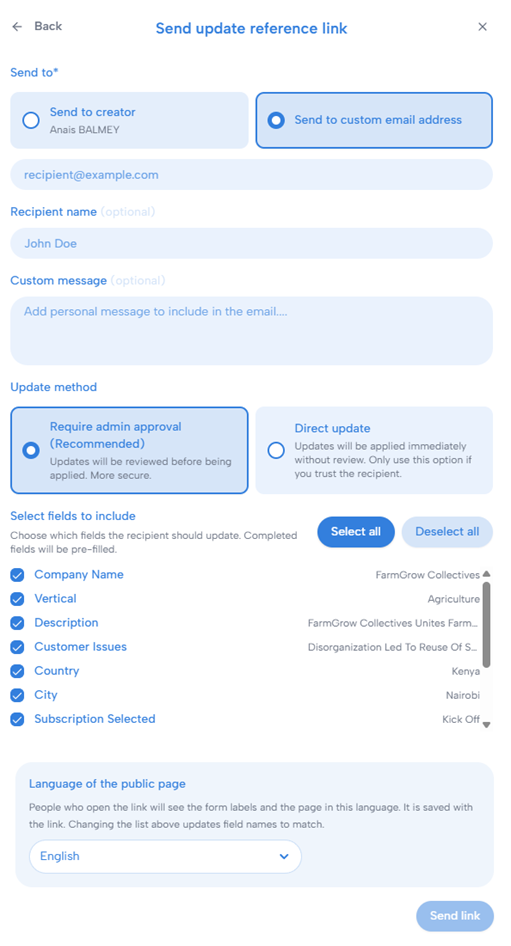
When sending the link, you can choose:
The recipient: send the link to the original creator of the reference, or enter a custom email address.
A recipient name and custom message: optionally personalize the email that will be sent.
The update method:
Require admin approval: submitted changes must be reviewed and approved before being applied. This is the recommended and more secure option.
Direct update: submitted changes are applied immediately without review. Use this option only if you fully trust the recipient.
The fields to include: choose which fields the recipient is allowed to review or update. Completed fields will be pre-filled.
The language of the public page: choose the language in which the recipient will see the form labels and page content.
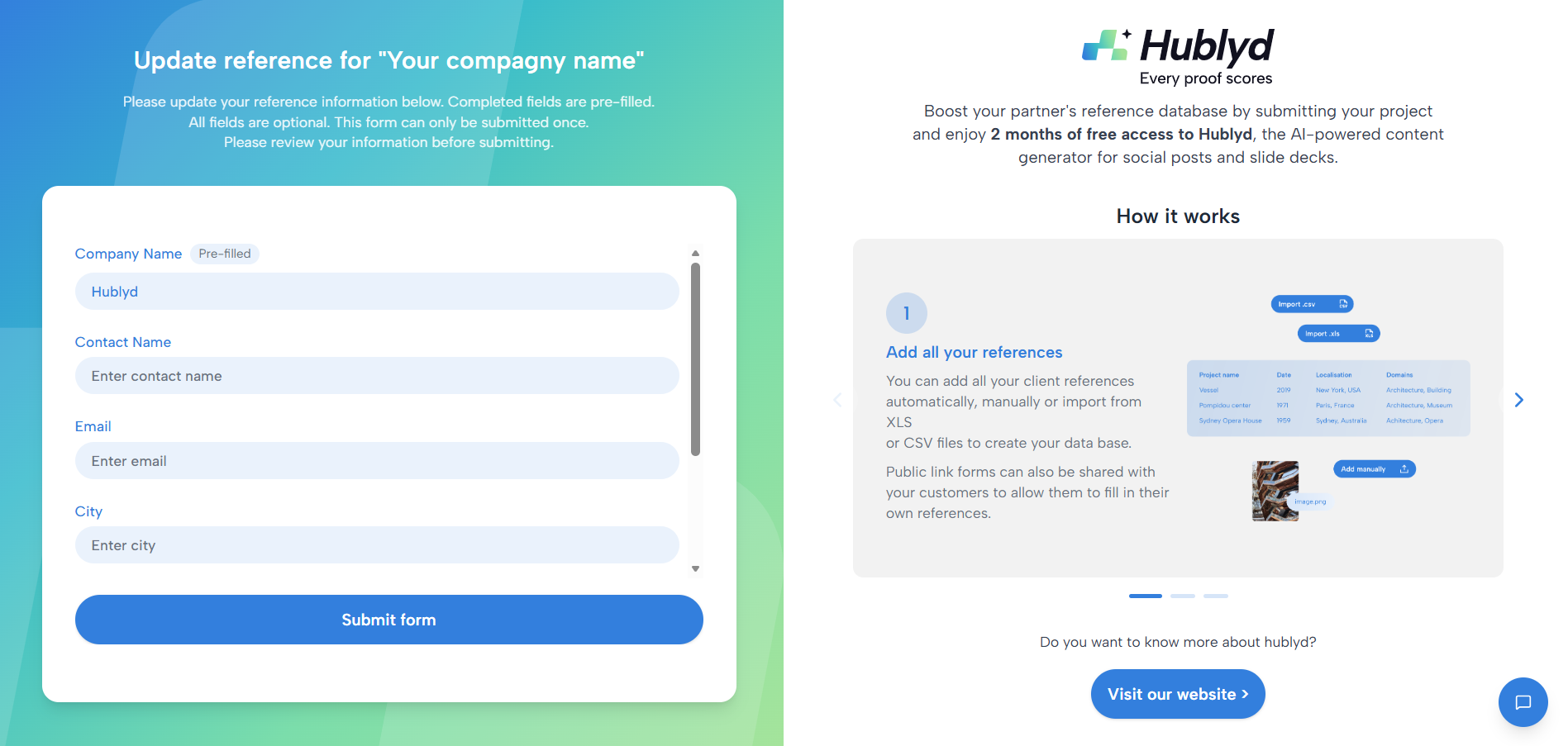
The recipient will receive a public page containing the selected fields, already pre-filled when data exists. They can then review, edit, or complete the information before submitting it.
Deleting a reference
Deleting a reference permanently removes it from the library.
How to delete a reference
Open the ⋯ menu on a reference row
Click Delete
Once deleted:
The reference cannot be recovered
It will no longer appear in searches or generation
We recommend deleting references only when they are no longer relevant.
Managing confidentiality
You can also modify the security level of the reference.
Use Confidential for strictly internal references. Confidential references are not shared or used outside Hublyd.
Use Restricted for references that can be used in head-to-head contexts only, such as presentations or meetings. Restricted references should not be used for public communication, including social media or public marketing content.
Use Public for references that can be used and promoted freely. Public references may be used for presentations, meetings, marketing, sales, and other external uses as needed.
Managing fields within a reference
When editing a reference, you can:
Add optional fields (if allowed by the schema)
Fill missing data
Correct formatting issues
Schema-level changes (adding or modifying columns) are managed at the library level and are covered in a separate article.
Best practices
Keep references updated to ensure accurate slides
Use duplication instead of manual re-entry when possible
Review confidential references regularly
Validate data before important presentations
What’s next?
Next articles in the References section include:
Displaying references
Confidentiality and user access to references
These will help you control how references are visualized and who can access them.
Was this helpful?
Still need help? Share an idea