Add or Import your first references
Adding your first references is a key step to start using Hublyd. During onboarding, you can add references in tree different ways. All of them are designed to help you structure your data correctly from the start.
Written By Hublyd
Note: We’ll cover additional ways to create and manage references after onboarding in a separate article.
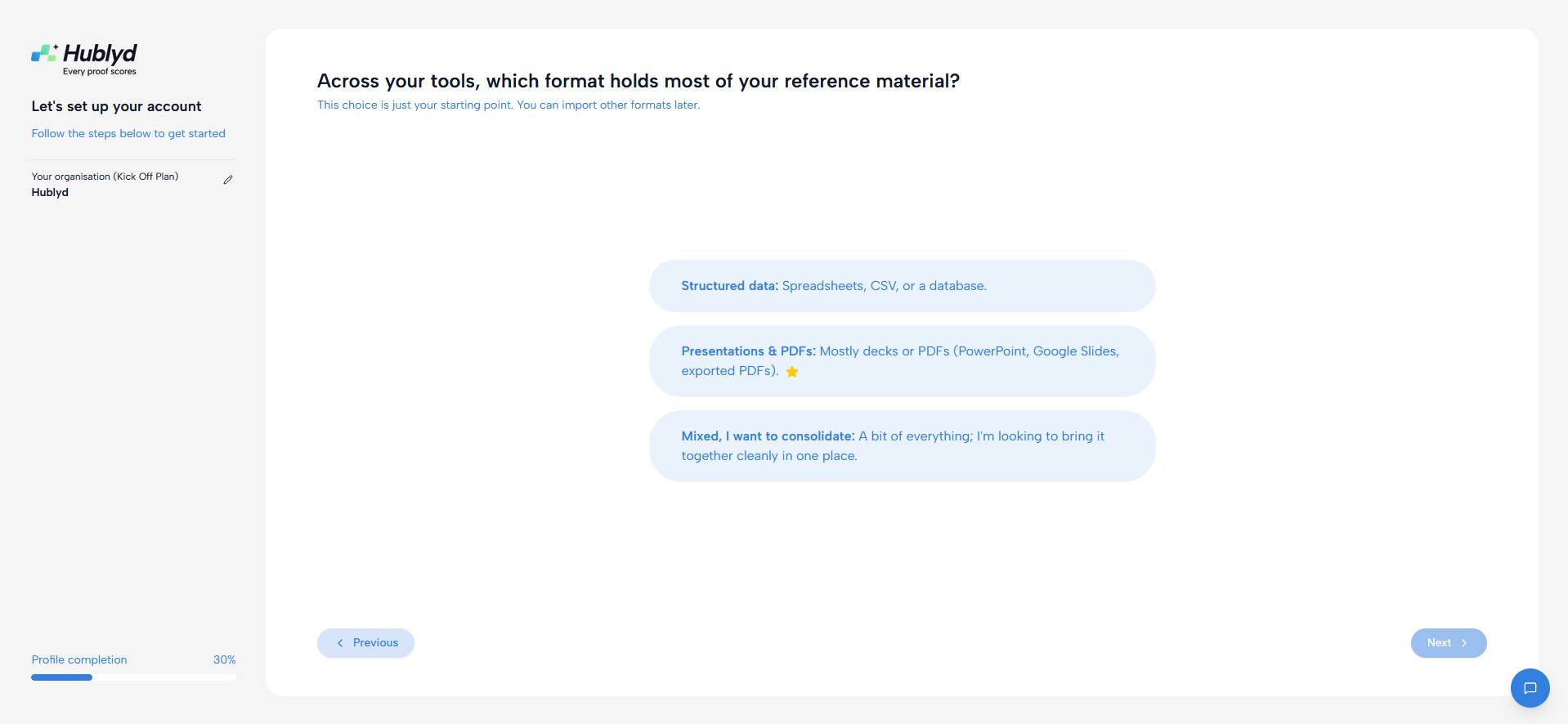
Option 1: Import a CSV or XLS file
If you already have customer references stored in a spreadsheet, this is the fastest way to get started.
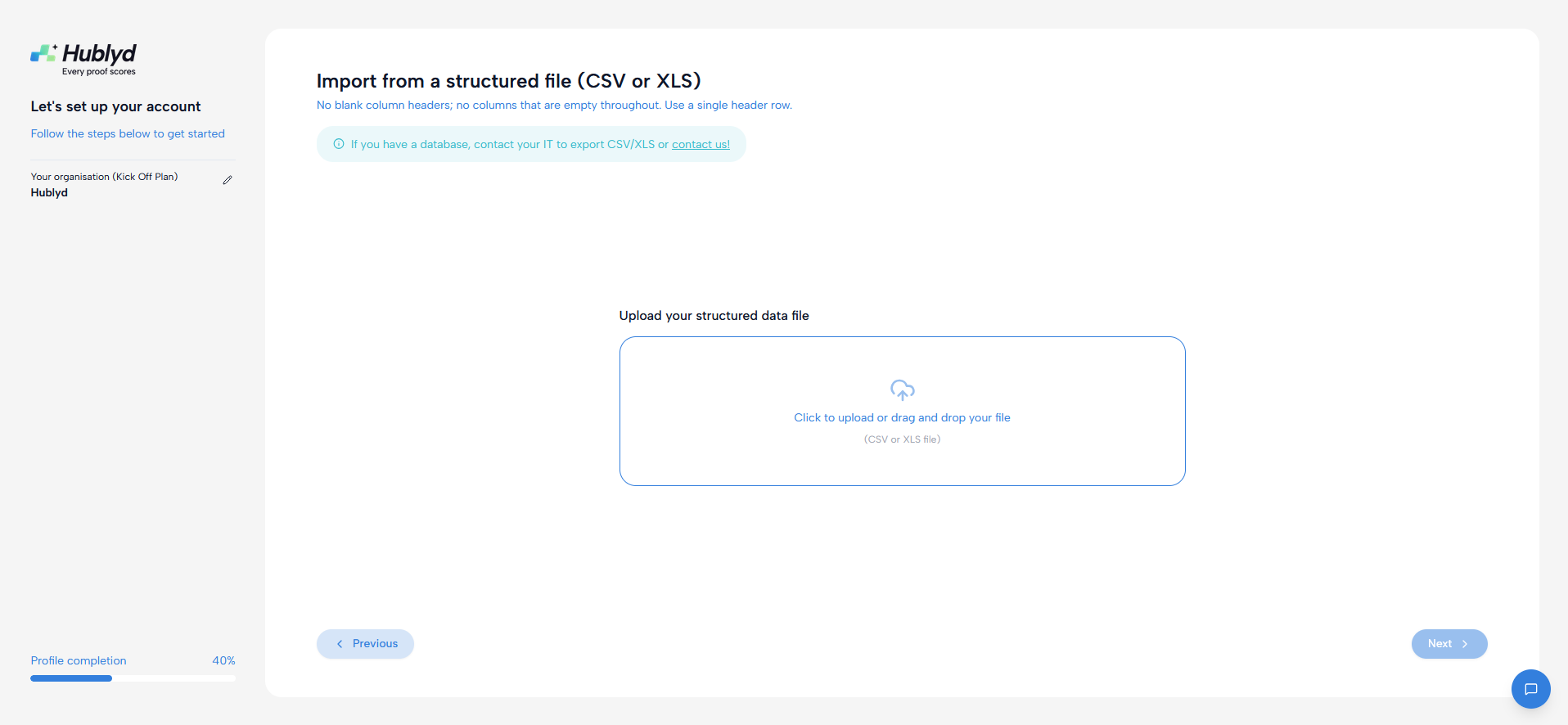
Step 1: Upload your file
During onboarding, choose Import data rows and upload your file.
Hublyd’s AI will automatically:
Detect headers and columns
Analyze data types
Suggest the best structure for your references
This allows you to import even complex spreadsheets without manual setup.
Step 2: Review detected columns
Once the file is uploaded, you’ll see a preview of the detected columns and data.
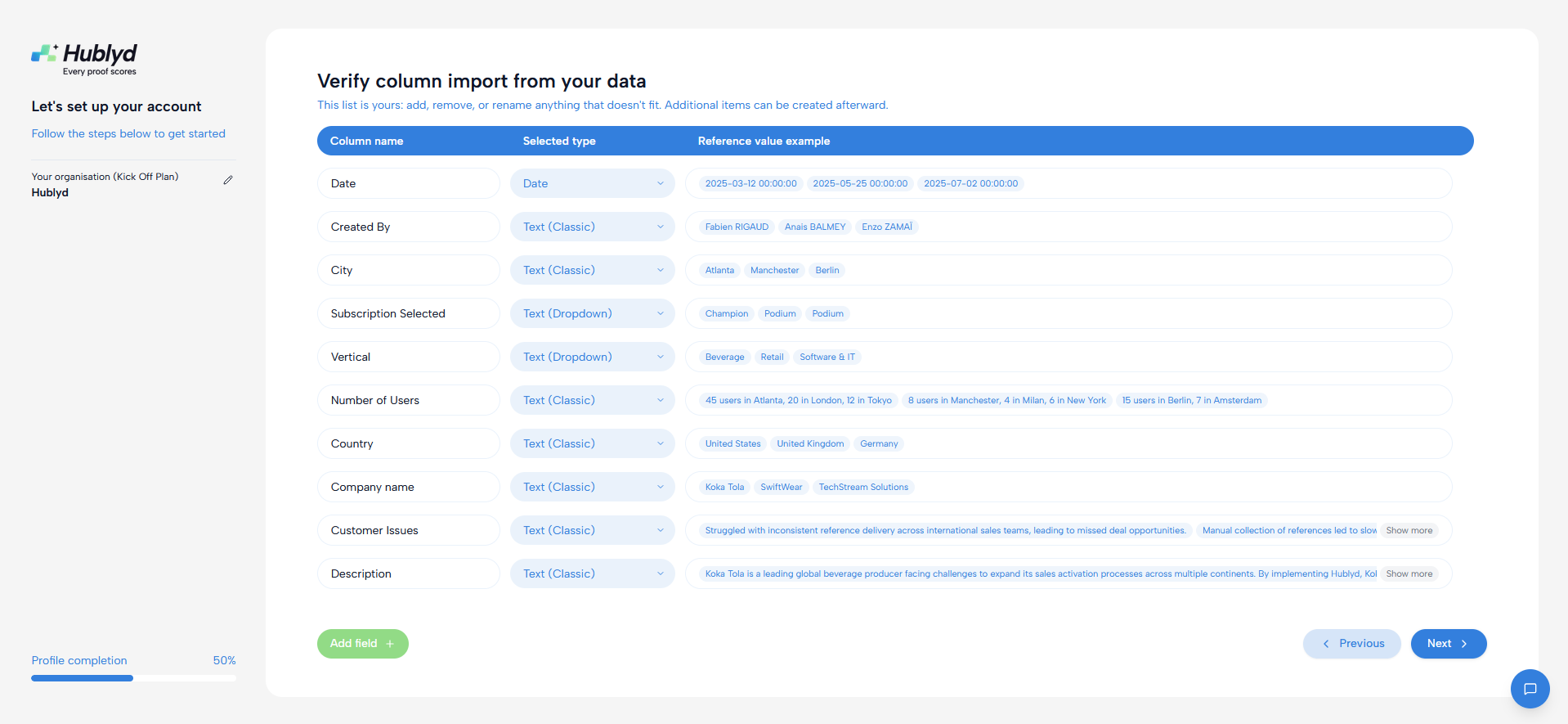
⚠️ This is an important step. Please double-check that the correct columns are selected before continuing.
Column type
This defines the data format of the column, such as text, number, or date.
Selecting the correct type ensures values are properly parsed, validated, and displayed.
Step 3: Specify special columns
Hublyd delivers many tools based on your data. Some columns must have specific characteristics:
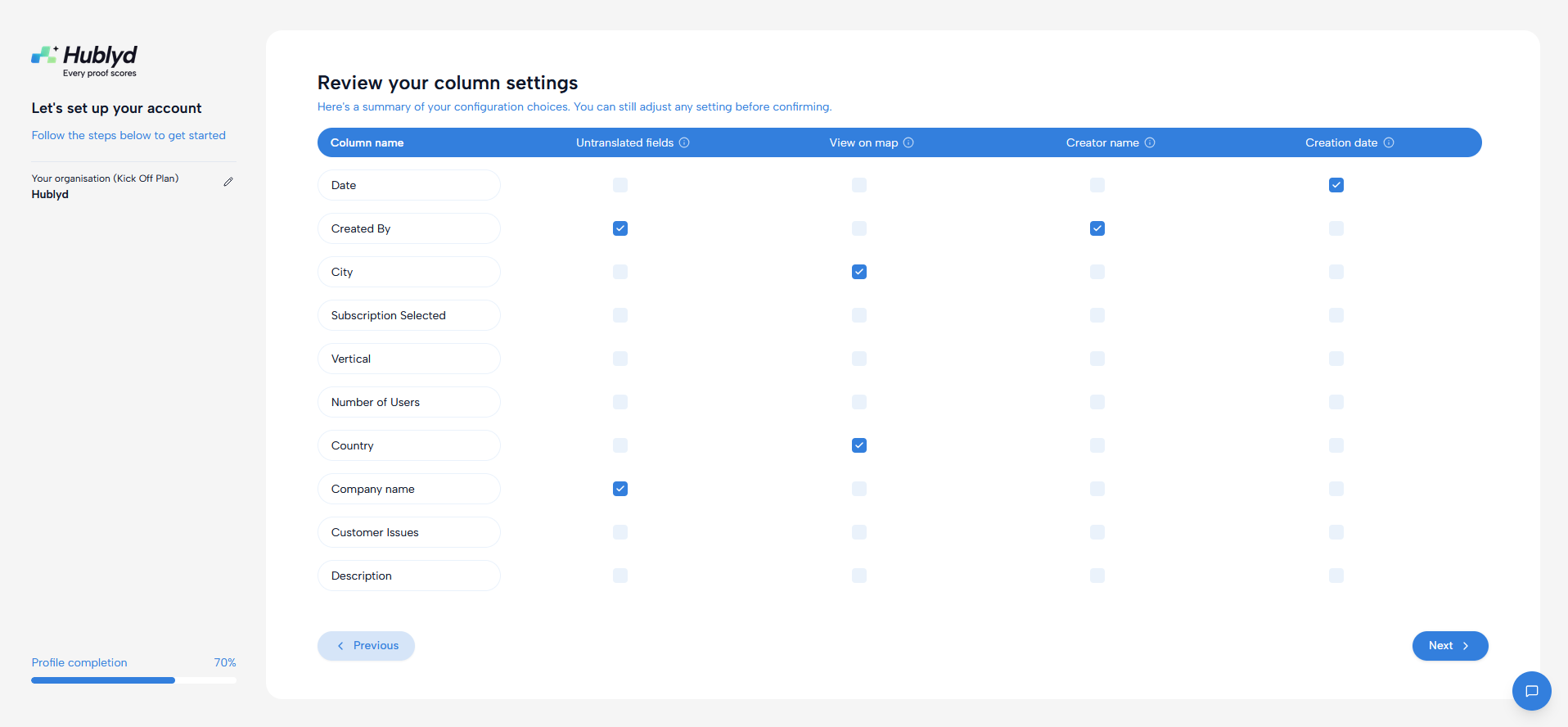
Untranslated data
This data includes values that should not be translated, such as company names, brand names, or people’s first and last names. These fields are kept exactly as provided to preserve their original meaning and spelling.
Location data
This data is used to display your references on the map (for example: country, city, region).
Make sure you select the column(s) that best represent where each reference is located.
User data
This data is used to link references to users you will invite later (for example: customer name, company, contact, or account owner).
Selecting the correct user-related column is essential to properly connect references to users in Hublyd.
Date data
This data is used to maintain history and enable filtering. The date format (DD/MM/YYYY) can be customized globally in your Library Settings.
Step 4: Confirm and import
Once everything looks good, you can review every row in your file and remove the ones you don’t want to keep:
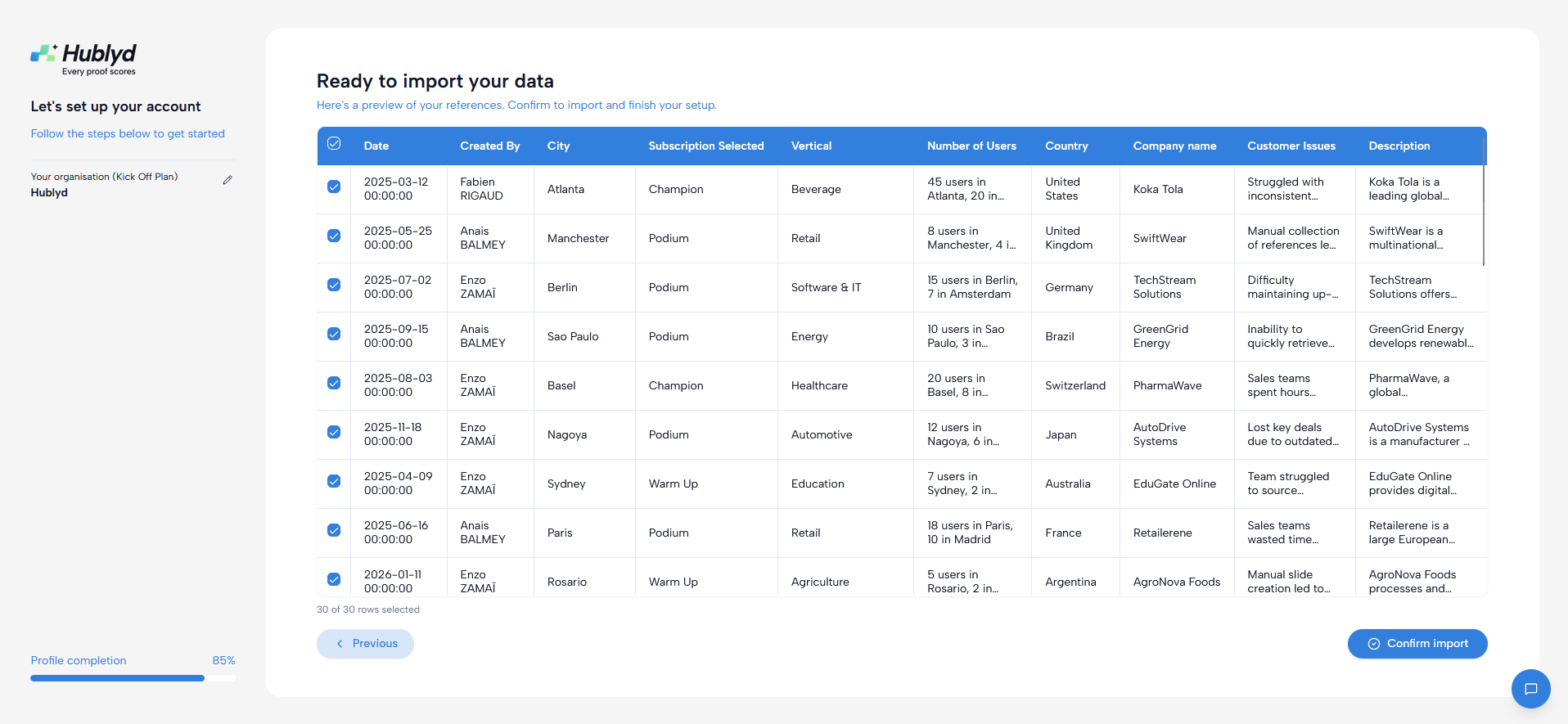
Confirm the import to add your references to Hublyd and make them ready to use. The import duration may vary depending on the number of references. Your data will then be translated and processed according to the languages you selected.
Option 2: Import from presentation
Note: this feature is only available on premium plans (Warm up and Podium)
Step 1: Upload your file
During onboarding, choose Import from presentation and upload your file.
Hublyd’s AI will automatically:
Create a column name for each relevant field
Extract data from the presentation and regroup it into the relevant columns
Extract images from the presentation and regroup them into the relevant columns
This allows you to import even complex presentation without manual setup.
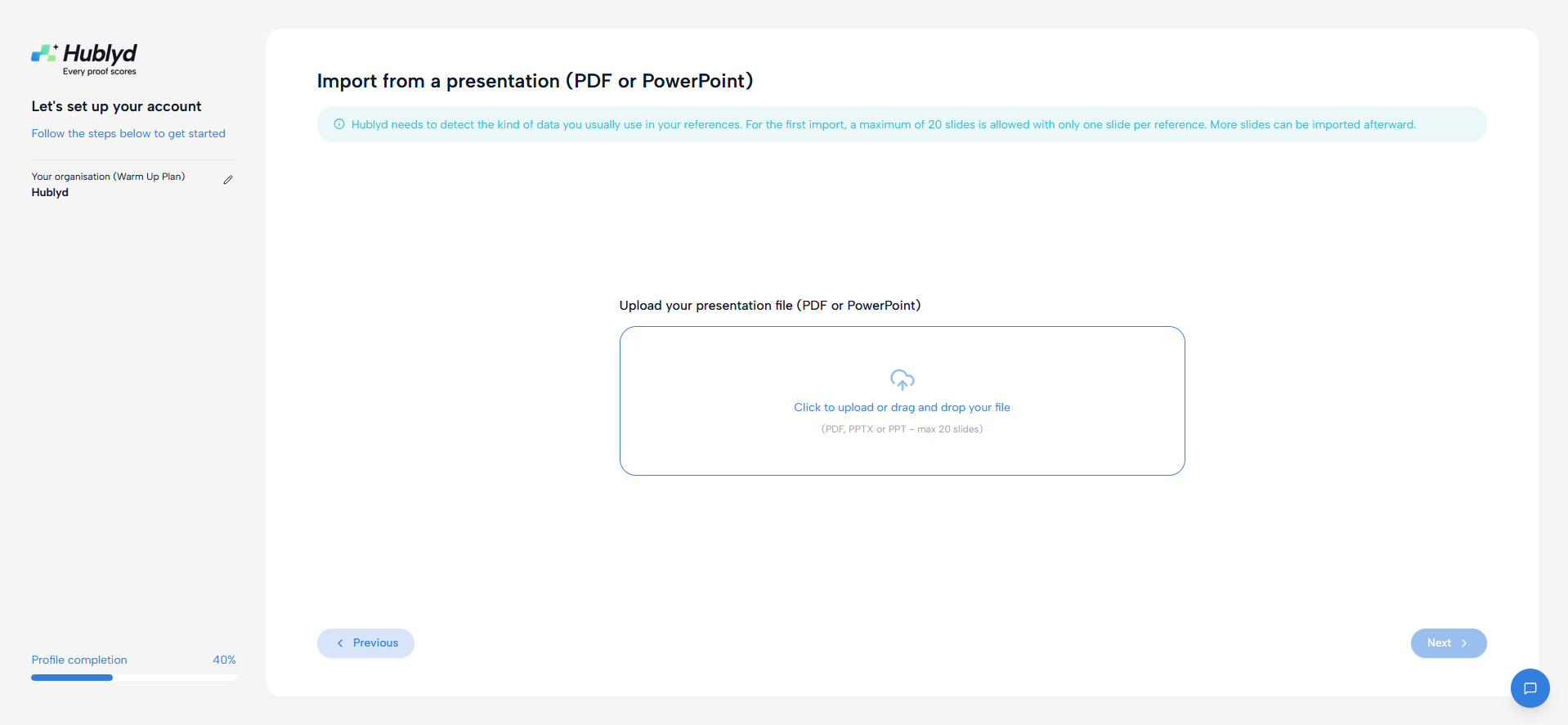
Step 2: Review the created columns
Hublyd automatically creates and preselects column names based on the extracted data.
You can rename fields, change their types, add or remove columns—everything is fully adjustable.
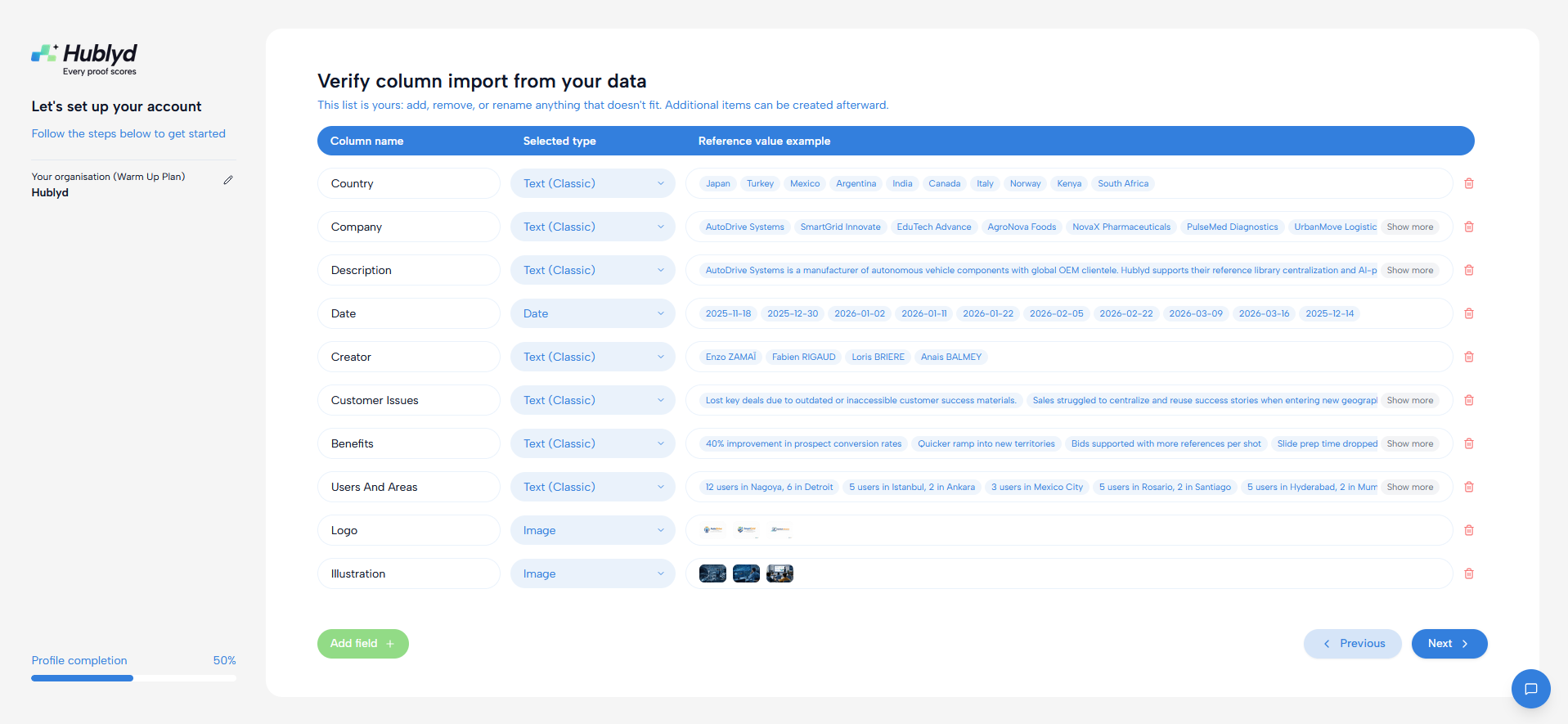
This step is simply a preprocessing phase to review and fine-tune the extracted data before import.
Step 3: Specify special columns
Hublyd delivers many tools based on your data. Some columns must have specific characteristics:
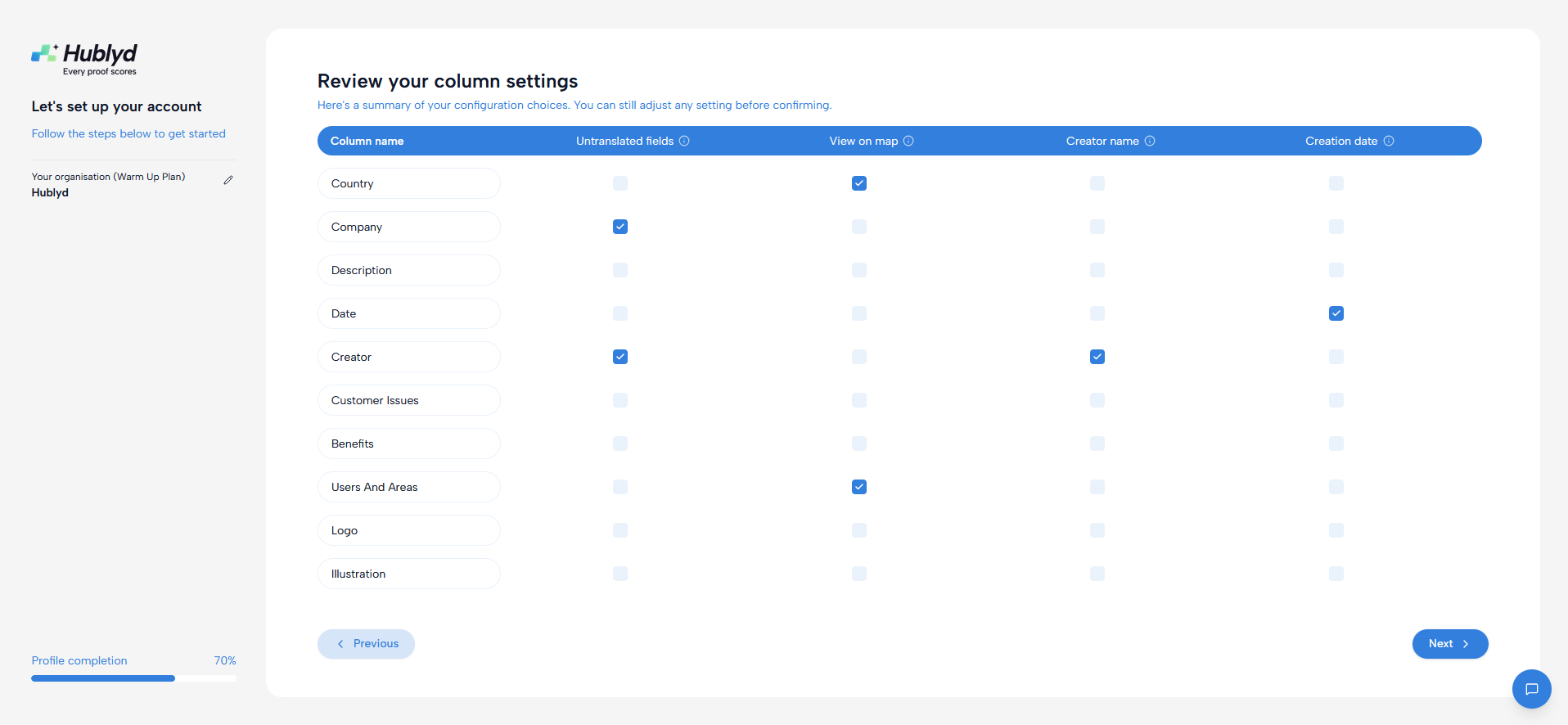
Untranslated data
This data includes values that should not be translated, such as company names, brand names, or people’s first and last names. These fields are kept exactly as provided to preserve their original meaning and spelling.
Location data
This data is used to display your references on the map (for example: country, city, region).
Make sure you select the column(s) that best represent where each reference is located.
User data
This data is used to link references to users you will invite later (for example: customer name, company, contact, or account owner).
Selecting the correct user-related column is essential to properly connect references to users in Hublyd.
Date data
This data is used to maintain history and enable filtering. The date format (DD/MM/YYYY) can be customized globally in your Library Settings.
Step 4: Review the extracted data and import
Review the extraction slide by slide to ensure the data is correctly captured (no mistakes) and assigned to the expected columns.
You can edit text directly, drag and drop images between columns, and delete an entire slide if you don’t want its data to be included in the import.
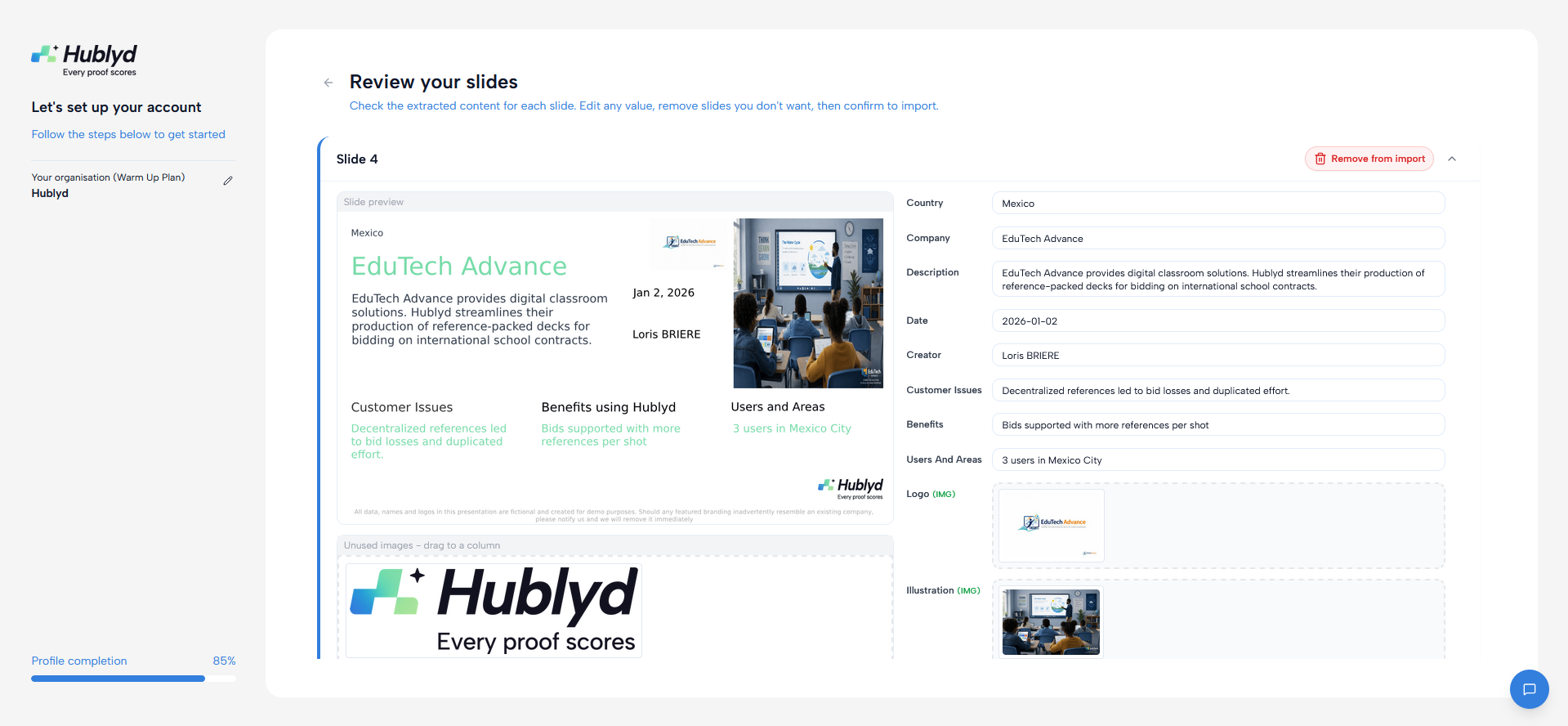
This step helps validate and fine-tune the extraction before completing the import. Confirm the import to add your references to Hublyd and make them ready to use. The import duration may vary depending on the number of references. Your data will then be translated and processed according to the languages you selected.
Option 3: Create columns manually (with or without AI)
If you don’t have a spreadsheet yet, you can create your reference structure from scratch.
Step 1: Define your columns
During onboarding, choose No i have nothing.
By default, if you provided your website or a description of your business, Hublyd’s AI will generate some columns for you. You can then adjust, edit, or remove them to better match how you want to present your business. This helps you start with a structure that fits your sales and marketing needs.
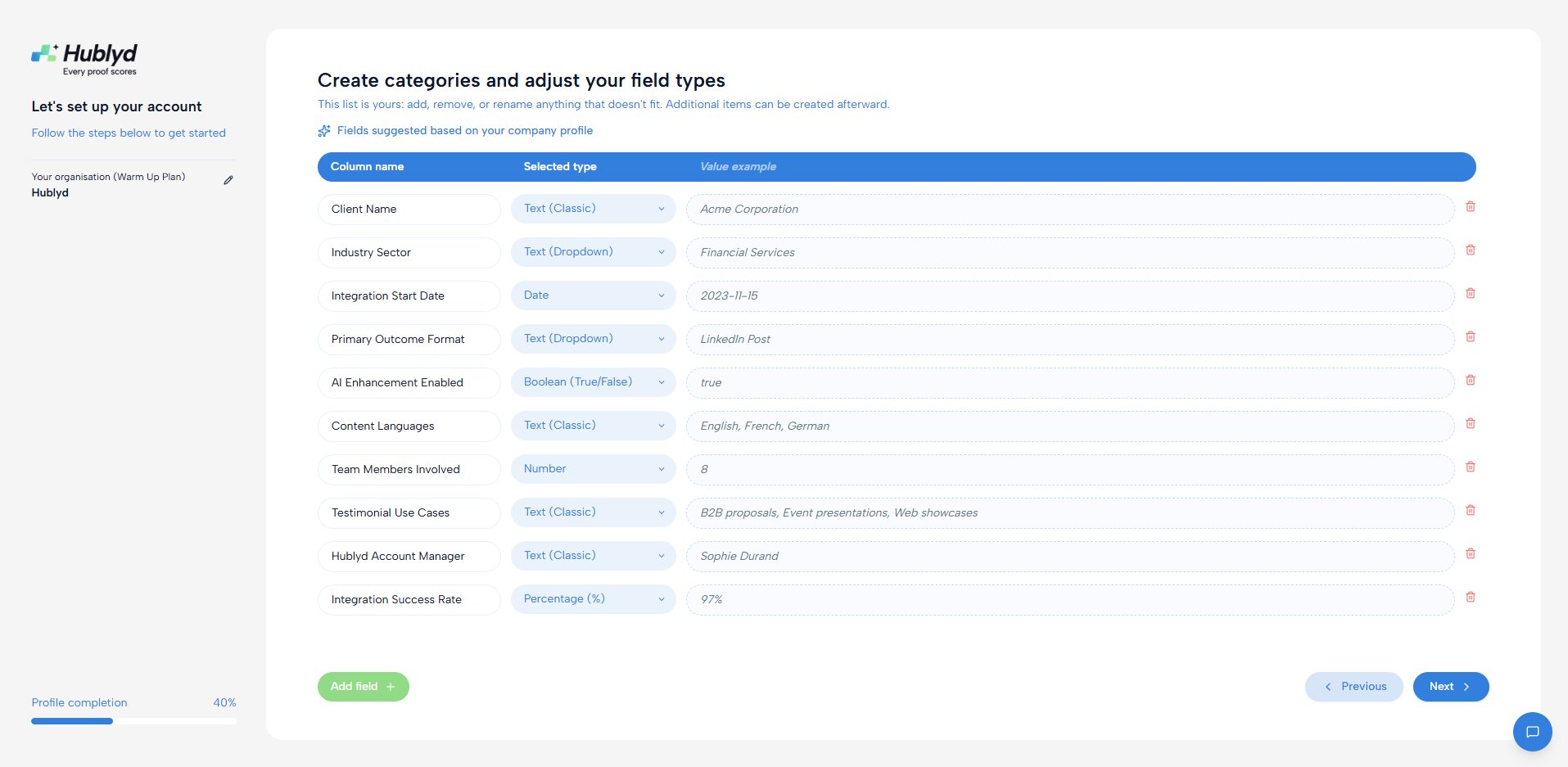
Adjust the type of each column, such as date, text, list, or any other format that best fits your data.
Step 2: Specify special columns
Hublyd delivers many tools based on your data. Some columns must have specific characteristics:
Untranslated data
This data includes values that should not be translated, such as company names, brand names, or people’s first and last names. These fields are kept exactly as provided to preserve their original meaning and spelling.
Location data
This data is used to display your references on the map (for example: country, city, region).
Make sure you select the column(s) that best represent where each reference is located.
Please note that “Data on Map” is used to display your references on the map (for example: country, city, region).
Make sure you select the column(s) that best represent where each reference is located.
“Untranslated value” columns includes values that should not be translated, such as company names, brand names, or people’s first and last names. These fields are kept exactly as provided to preserve their original meaning and spelling.
Step 3: Add your first reference
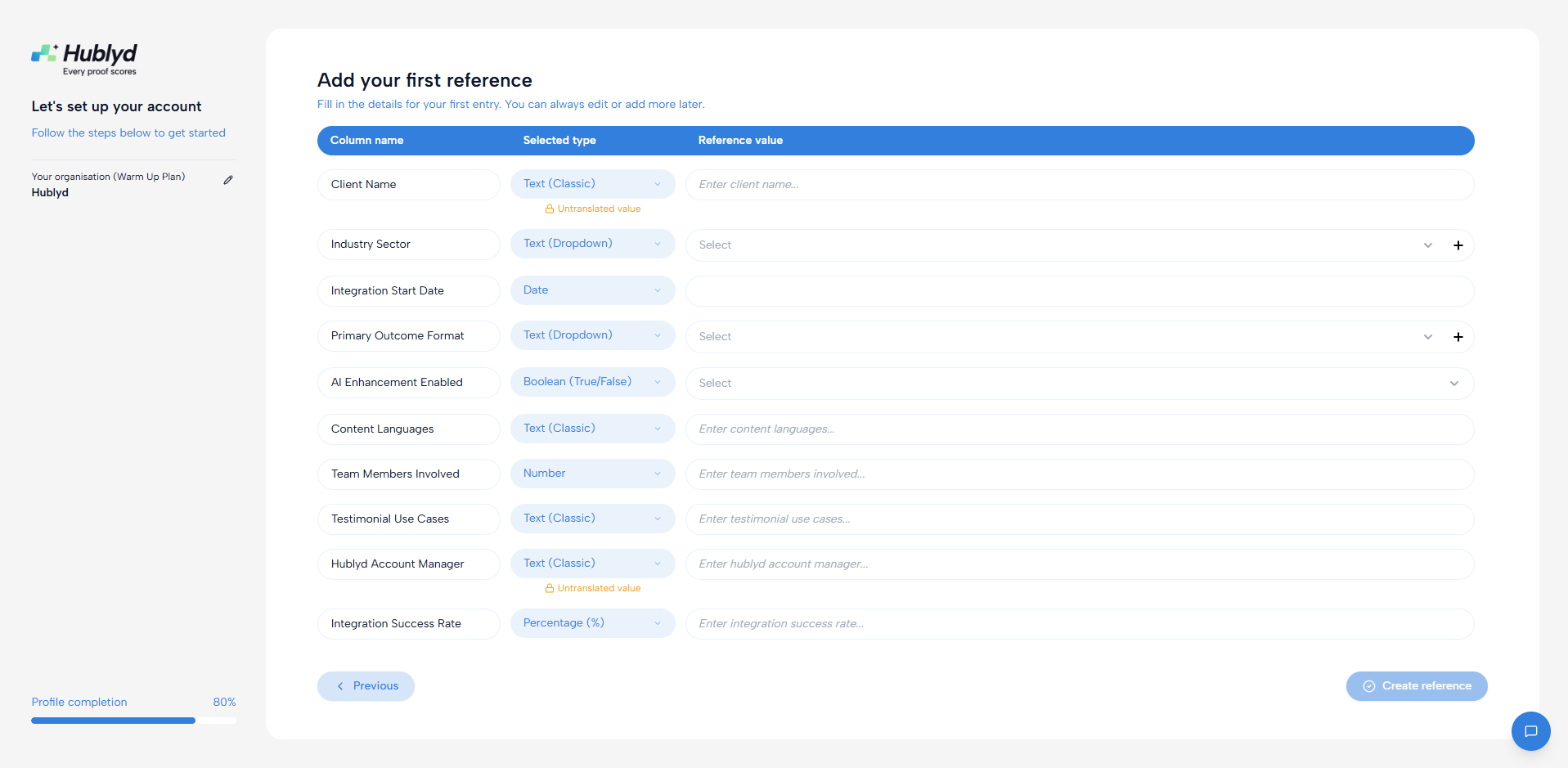
After setting up your columns, you’ll be prompted to add your first reference manually.
This helps you validate that your structure works as expected.
What’s next?
Once your references are added, you’re ready to start using Hublyd’s core features.
However, to generate slide decks, you’ll first need to create a presentation template.
➡️ Next article: Create your first template
We’ll walk you through:
Creating a slide structure
Defining layouts and sections
Preparing templates for automatic deck generation
Was this helpful?
Still need help? Share an idea