Creating references manually
Creating a reference manually is the best option when you want full control over the data or when adding references one by one.
Written By Hublyd
How to create a reference manually
Go to the References section
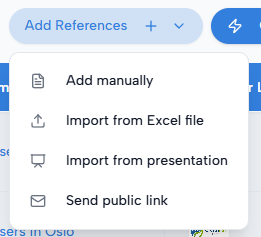
Click Add references
Select Add manually
This opens the Add a new reference form.
Filling the reference form
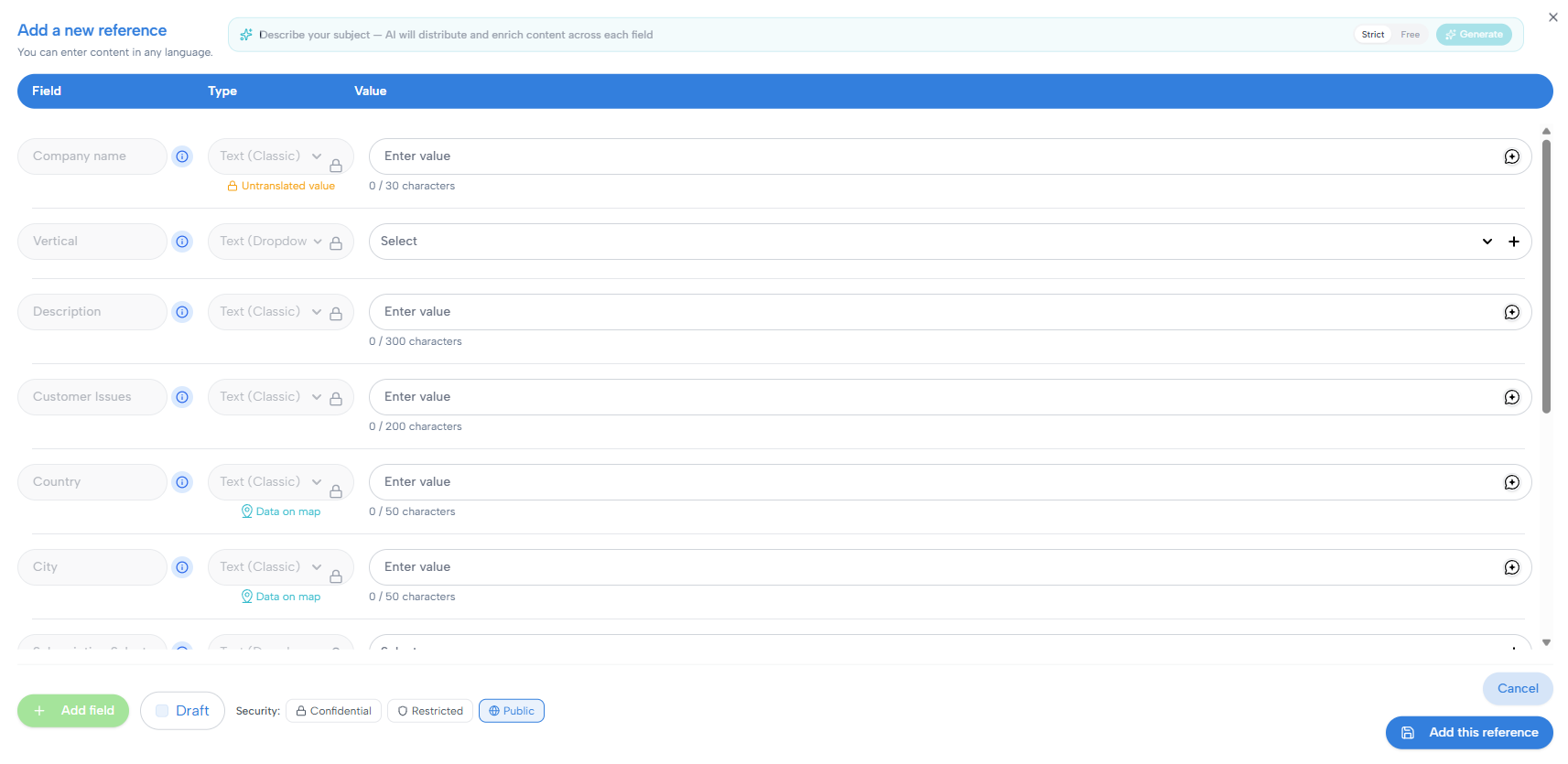
Each row in the form corresponds to a column in your library.
For each field, you can:
Enter a value
Select from dropdowns (if applicable)
Add dates, URLs, or images depending on the column type
Some fields may be locked if they are required or managed by the schema.
Generating a reference with AI
Note: this feature is only available on premium plans (Podium)
At the top of the form, you can describe your subject in natural language and let Hublyd’s AI generate the full reference for you.

The AI can automatically distribute and enrich the content across the different fields of your library. You can choose between:
Strict: generates content that stays close to your input.
Free: allows the AI to enrich the reference more freely.
Once generated, you can review and edit every field before saving the reference.
Field-level AI assistance
Note: this feature is only available on premium plans (Podium)
You can also use the AI assistant on individual fields to generate or improve specific content.
The generated content matches the language of your input and can be produced in short, medium, or long format.
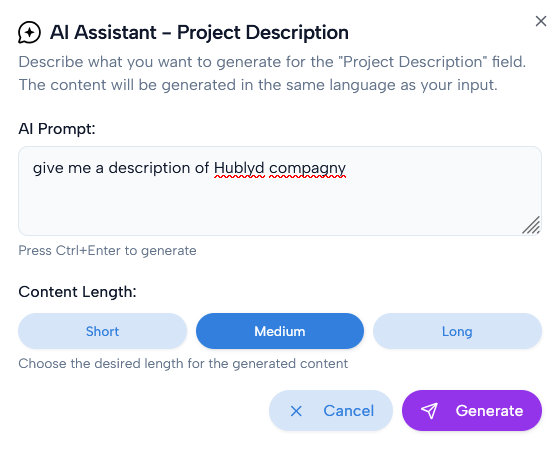
Once generated, you can review the result and choose to either replace the existing content or add it to the current value, keeping full control over the final text.

Draft and security options
At the bottom of the form, you can choose whether the reference should be saved as a Draft. A draft reference is saved in the library but is not ready to be used for generation yet.
You can also define the security level of the reference.
Use Confidential for strictly internal references. Confidential references are not shared or used outside Hublyd.
Use Restricted for references that can be used in head-to-head contexts only, such as presentations or meetings. Restricted references should not be used for public communication, including social media or public marketing content.
Use Public for references that can be used and promoted freely. Public references may be used for presentations, meetings, marketing, sales, and other external uses as needed.
Saving the reference
Click Add this reference to save it.
Once saved:
The reference appears as a new row in the table
It becomes available for filtering, selection, and generation (unless marked as draft or confidential)
Was this helpful?
Still need help? Share an idea